
Appearance
Building a Reusable Contract Template
If you send the same type of contract repeatedly - recurring service agreements, NDAs per new client, SOWs per new project - a template pays for itself on every use. Templates capture the standard HTML body, parties, clauses, and obligation schedule. New contracts from the template inherit everything.
This tutorial walks through creating a template for a Standard Service Agreement. Takes about 6 minutes.
1. Open Contract Templates
Click Contract Templates in the sidebar.
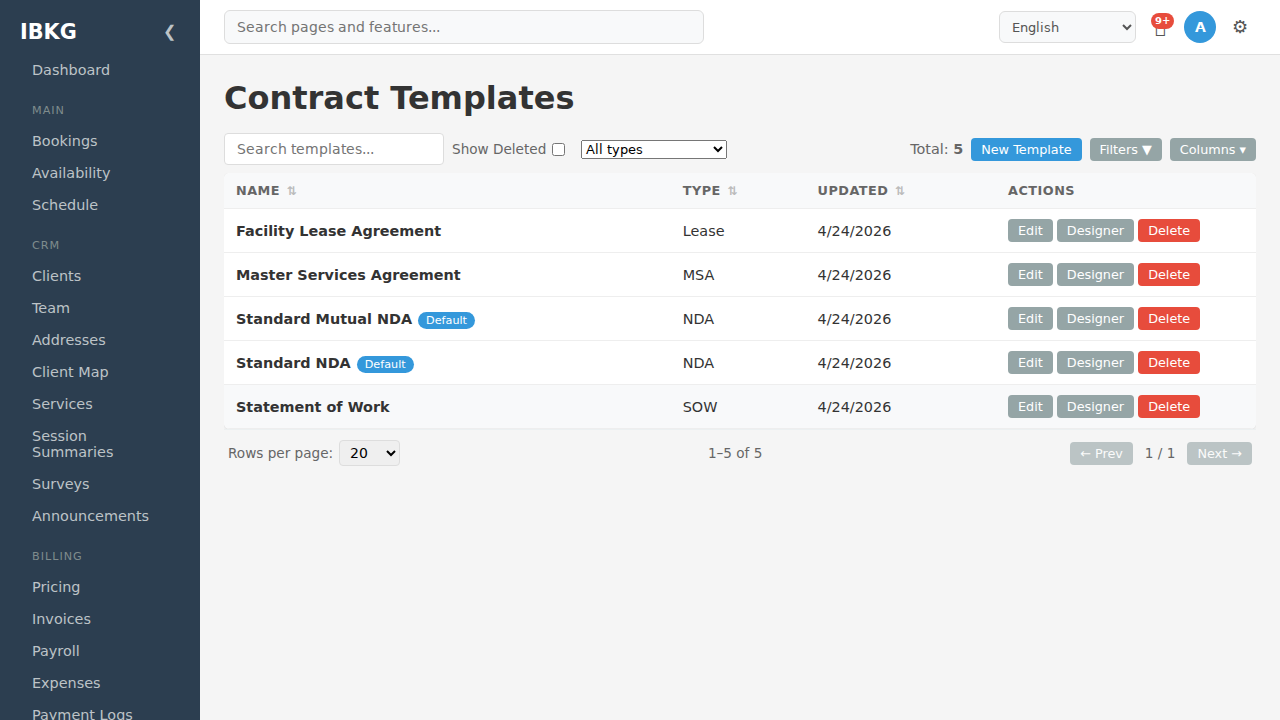
The seeded set has NDAs, MSA, SOW, and Lease. Click New Template.
2. Basic template setup
The creation modal asks for:
- Name (required) - "Standard Service Agreement"
- Type - Service Agreement
- Is Default - on (so it's pre-selected when creating any Service Agreement contract)
Click Create. The template appears in the list.
3. Open the designer
On the new template's row, click Designer. The designer opens with an empty canvas. Same UI as the invoice designer, same drag-and-drop mechanics - see Invoice Designer tutorial for details.
Key contract-specific fields in the left panel:
- CONTRACT group: Title / Number, Contract Type, Start Date, End Date, Signed Date, Status, Contract Value
- PARTIES group: Counterparty (renders the client/external party name)
- CONTENT group: Notes (body text block for the contract content)
4. Build the layout
Drag these to the canvas in a typical contract order:
Header zone (repeats on every page):
- Company Name (top-center, large)
- Title / Number (below the name)
Content zone (body):
- Horizontal divider
- "Parties" heading (text label)
- Counterparty block (drop from PARTIES)
- Contract Value (inline)
- Start Date and End Date (as a row)
- Horizontal divider
- Notes block (this is where clauses go)
5. Add clauses
Switch to Edit HTML mode in the designer (top-right toggle). The raw HTML of your layout appears. Paste in clauses from the Clause Library:
Common clauses for a service agreement:
- Scope of Services
- Fees and Payment Terms
- Term and Termination
- Confidentiality (pick Mutual Confidentiality from the library)
- Limitation of Liability
- Governing Law (Governing Law (New York) from the library)
- Indemnification (Indemnification (Mutual))
For each: open the Clause Library in a second tab, copy the body HTML, paste into your template's HTML at the right position.
6. Save the template
Click Save in the designer. The HTML is stored on the template. Back to return to the template list.
7. Add a default obligation schedule
Click Edit on your template. Expand the Default obligation schedule field (if surfaced in the UI) or edit the template's JSON directly. Example schedule for a service agreement:
json
[
  {
    "days_from_start": 7,
    "label": "Counterparty COI",
    "description": "Collect certificate of insurance from counterparty"
  },
  {
    "days_from_start": 14,
    "label": "Kickoff meeting",
    "description": "Schedule and hold project kickoff"
  },
  {
    "days_from_start": 30,
    "label": "First invoice cycle",
    "description": "Issue invoice for initial month"
  },
  {
    "days_from_start": 90,
    "label": "Quarterly review",
    "description": "Review deliverables and client satisfaction"
  },
  {
    "days_from_start": 335,
    "label": "Renewal decision deadline",
    "description": "Notify client 30 days before end of term"
  }
]
Save.
8. Test the template
Go to Contracts -> New Contract.
In the creation modal:
- Type: Service Agreement
- Your template is pre-selected (because Is Default is on)
- Fill in title and dates
- Click Create
The new contract opens with:
- Your template's HTML rendered in the designer
- Empty parties (add them now)
- Status: Draft
When you eventually move this contract to Active, the five obligations auto-generate:
- Counterparty COI due in 7 days
- Kickoff meeting due in 14 days
- First invoice cycle due in 30 days
- Quarterly review due in 90 days
- Renewal decision deadline due in 335 days
9. Maintain the template
As you learn from real contracts, update the template:
- Missing a clause you keep typing in manually? Add it to the template.
- Obligation never happens on day X? Adjust the
days_from_start. - Template too generic? Create a separate one for each sub-type (e.g. "Fixed-fee Service Agreement", "Hourly Service Agreement").
Changes to a template don't retroactively update contracts already created from it. This is intentional - existing contracts lock in their content at creation time.
Tips
- Mark one template as Default per type. Users shouldn't have to pick a template for the common case.
- Start with a seeded template and customise. Don't build from scratch - clone the closest seeded one and edit.
- Test with a real contract before rolling out. Create a test contract, send it to yourself as the counterparty, sign it, and verify obligations fire correctly.
- Version templates by name. Add " (v2 - 2026-Q3)" suffix to the name when you make breaking changes. Keeps history clear.
What's next
- Your First Contract - use your template end-to-end
- Clause Library reference - manage reusable clauses
- Obligations - see template-generated obligations in context