
Appearance
Templates and Clauses
FoxCLM separates reusable contract assets into two places:
- Templates - a complete contract starting point (HTML content + obligation schedule) per contract type
- Clauses - individual paragraphs (confidentiality, force majeure, IP assignment, etc.) that you can insert into any contract or template
Templates
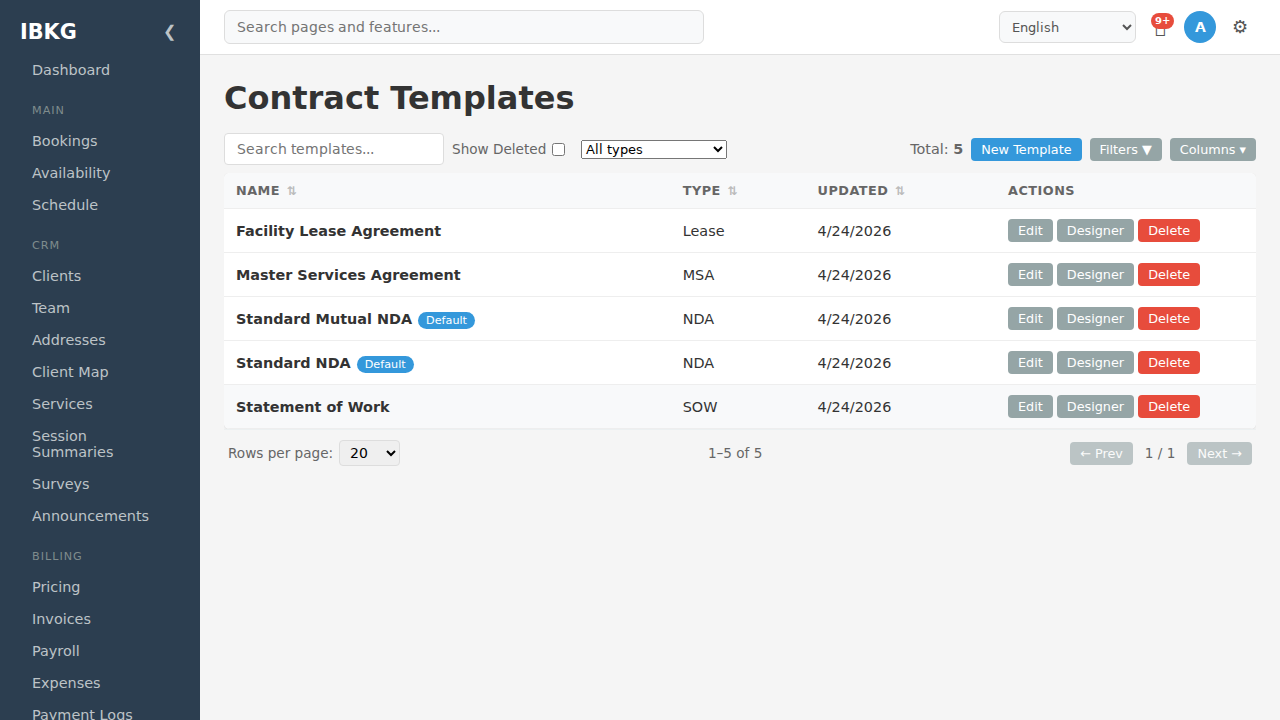
Navigate to Contract Templates in the sidebar. FoxCLM ships with five starter templates:
| Name | Type | Use for |
|---|---|---|
| Facility Lease Agreement | Lease | Renting space from or to another party |
| Master Services Agreement | MSA | Umbrella terms governing subsequent SOWs |
| Standard Mutual NDA | NDA (Default) | Reciprocal confidentiality |
| Standard NDA | NDA | One-way confidentiality |
| Statement of Work | SOW | Project scope, deliverables, timeline |
Click New Template to add your own.
Template fields
- Name (required) - internal label
- Type - NDA / MSA / SOW / Service Agreement / Lease / Amendment / Other
- Is Default - toggle; one template per type can be the default (pre-selected when creating a contract of that type)
- HTML content - the contract body (edit via the template designer, same layout as the invoice designer)
- Default obligation schedule - JSON array of
{ days_from_start, label, description }items. When a contract created from this template transitions toActive, each entry becomes an obligation withdue_date = contract.start_date + days_from_start.
Default obligation schedule example
For an MSA:
json
[
  { "days_from_start": 14,  "label": "Counterparty COI", "description": "Collect certificate of insurance" },
  { "days_from_start": 30,  "label": "First invoice cycle", "description": "Issue invoice for initial work" },
  { "days_from_start": 90,  "label": "Quarterly review", "description": "Review SOW performance" },
  { "days_from_start": 365, "label": "Annual review", "description": "Full relationship review and renewal decision" }
]
When a contract from this template reaches Active on 2026-05-01, FoxCLM auto-generates four obligations dated 2026-05-15, 2026-05-31, 2026-07-30, 2027-05-01.
Using a template
When you click New Contract, pick a template from the dropdown. The contract inherits:
- HTML content (editable per-contract in the Designer)
- Default obligation schedule (fires on
Activetransition) - Type (auto-filled; you can override)
Cloning a contract, in contrast, duplicates the specific filled-in content - no template reference.
Editing a template
Click Edit to change the name, type, or default flag. Click Designer to open the visual editor for the template's HTML.
Changes to a template do not retroactively update contracts already created from it.
Clauses
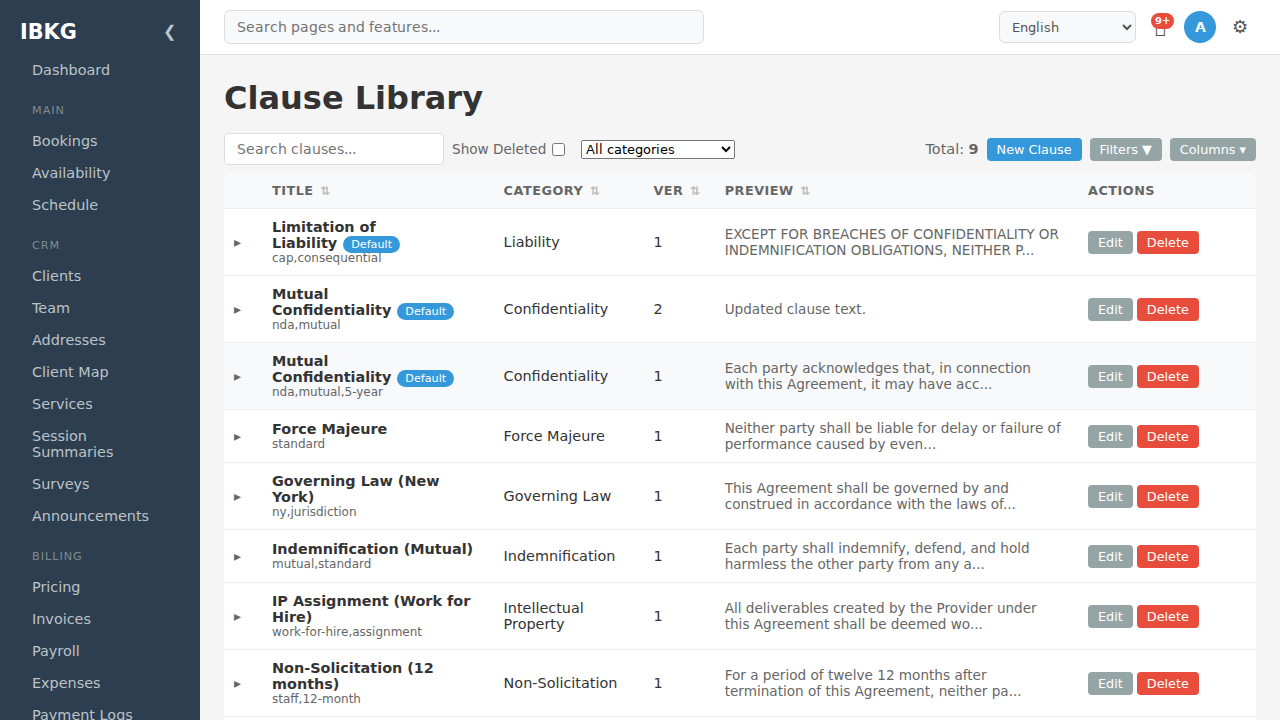
Navigate to Clause Library in the sidebar. Pre-seeded clauses include:
| Title | Category | Notes |
|---|---|---|
| Limitation of Liability | Liability | Caps damages, excludes consequential |
| Mutual Confidentiality | Confidentiality | Default mutual NDA clause |
| Force Majeure | Force Majeure | Standard clause |
| Governing Law (New York) | Governing Law | Jurisdiction-specific |
| Indemnification (Mutual) | Indemnification | Both-way indemnity |
| IP Assignment (Work for Hire) | Intellectual Property | All deliverables vest in client |
| Non-Solicitation (12 months) | Non-Solicitation | 12-month restriction |
Each clause has:
- Title
- Category (e.g. Confidentiality, IP, Liability)
- Tags - free-form (e.g.
nda,mutual,standard,ny,jurisdiction) - Preview / Body - the actual clause text (HTML)
- Is Default - marks commonly-used clauses
- Version - bumped on each edit so you can track which version a contract used
Using clauses in contracts
Clauses are not auto-inserted. To use a clause in a contract:
- Open the contract in Designer.
- Switch to Edit HTML mode.
- Paste the clause body at the desired position.
Alternatively, add the clause text to a template once, then every new contract from that template includes it.
Searching
The library supports:
- Full-text search across title and body
- Category filter dropdown
- Tag filter - shown below each clause title
- Show Deleted toggle for soft-deleted clauses
Clause versioning
Edits bump the version number. If you change "Mutual Confidentiality" from v1 to v2, contracts that referenced v1 show v1 content. New usage picks up v2.
Tips
- Build a template per contract type you issue regularly. The upfront investment pays back on every contract.
- Use obligation schedules. Don't rely on humans remembering to file a COI or renew an insurance certificate - the schedule does it.
- Version clauses deliberately. A small wording tweak bumps the version. Use tags like
2026-q2-revisionto track which iteration is current. - Categorise ruthlessly. A well-tagged clause library scales; a flat list of 50 clauses doesn't.
Next steps
- Creating Contracts - use templates when creating
- Obligations - understand how scheduled obligations fire