
Appearance
Setting Up Availability for a Booking Page
FoxCLM's booking pages let clients pick a time from your calendar - but only inside the availability windows you define. You decide the hours you're open, the slot duration, advance notice, and blackout dates. Each booking type has its own public URL and its own rules.
This tutorial walks through creating a new booking type and configuring its availability. Takes about 6 minutes.
1. Open the Availability page
Click Availability in the sidebar.
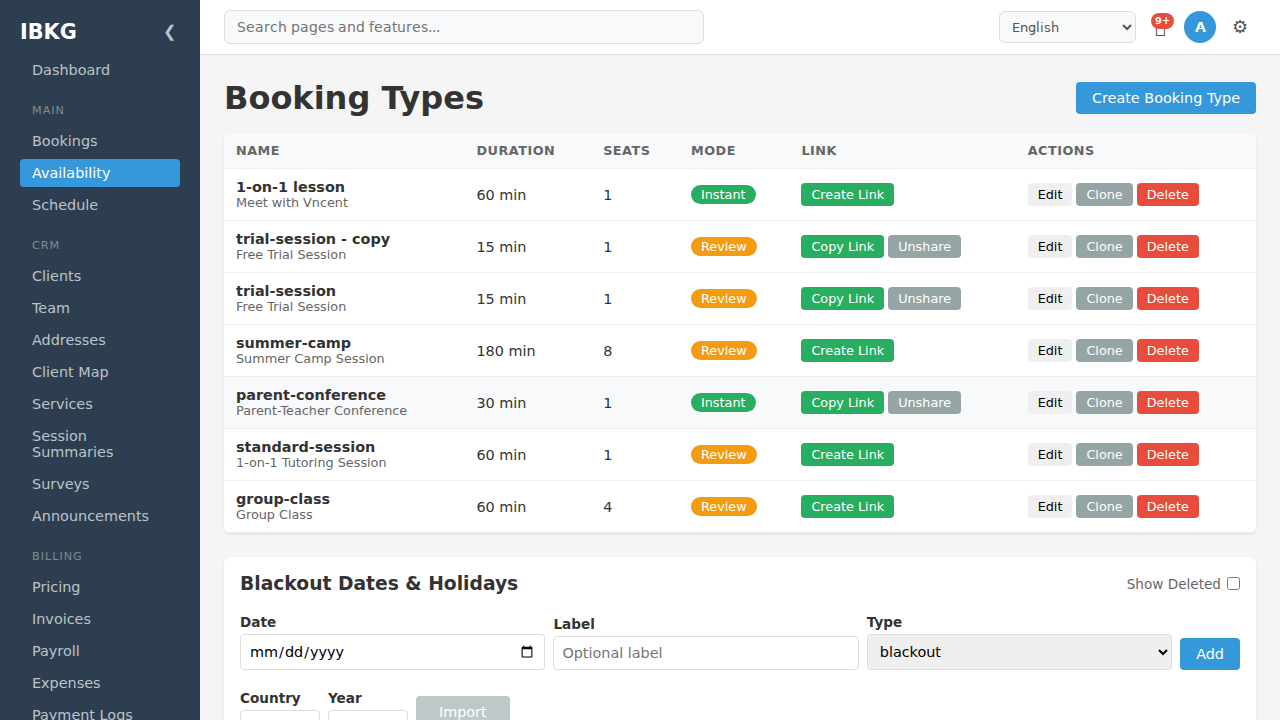
The page is titled Booking Types - each row is one bookable session type. The table shows:
- Name / Title - internal name and public-facing title
- Duration - length of each slot in minutes
- Seats - how many guests can book the same slot
- Mode -
Instant(auto-approve bookings) orReview(require manual approval) - Link -
Create Linkto generate a public URL, orCopy Link/Unshareonce active - Actions - Edit / Clone / Delete
The seeded examples include "1-on-1 lesson", "trial-session", "summer-camp", "parent-conference", "standard-session", and "group-class" - showing the range of use cases.
Click Create Booking Type in the top-right.
2. Step 1 - Overview
The 3-step wizard opens:
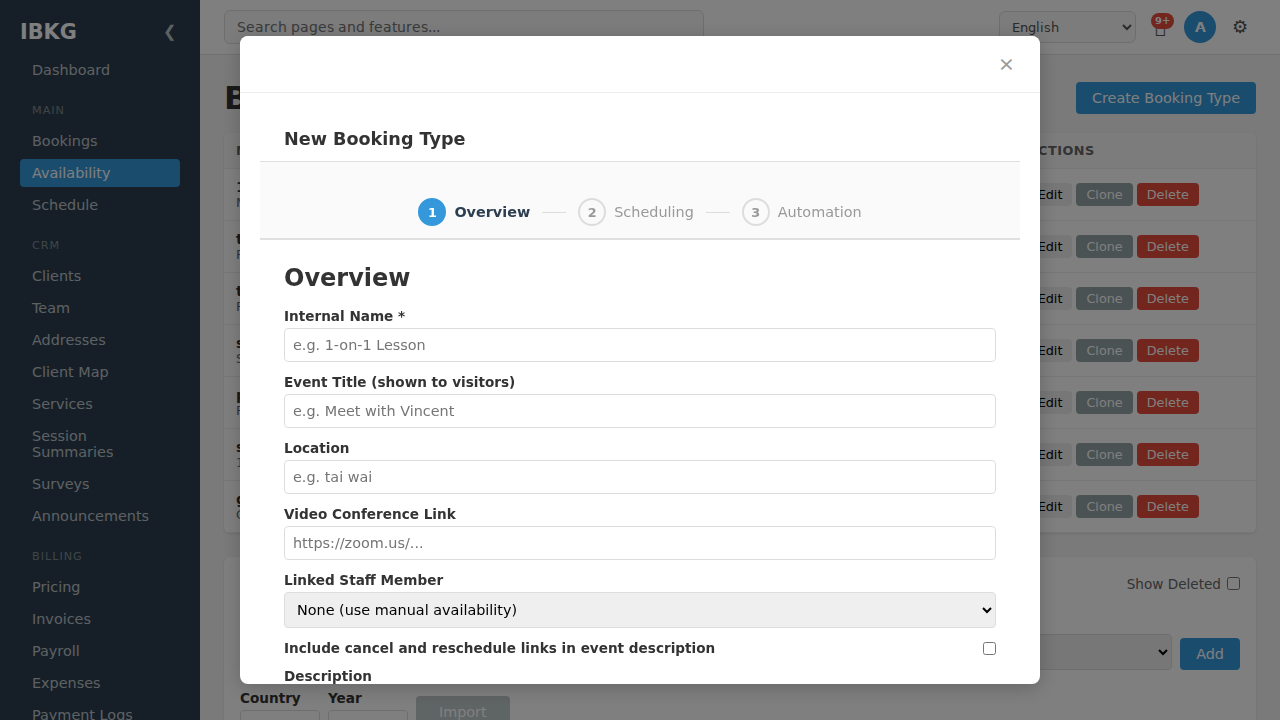
Fill in:
- Internal Name (required) - what you call it in the admin UI (e.g. "1-on-1 Lesson", "free-intro-call"). Keep it short and URL-safe.
- Event Title (shown to visitors) - the public title clients see on the booking page (e.g. "Meet with Vincent", "Free 30-minute intro call")
- Location - physical location (e.g. "tai wai", "123 Main St"). Shown to clients and on the calendar event.
- Video Conference Link - Zoom / Google Meet / Teams URL. Included in the confirmation email if set.
- Linked Staff Member - dropdown. If set, FoxCLM uses this staff's weekly availability automatically. Leave as "None (use manual availability)" to configure your own hours in Step 2.
- Include cancel and reschedule links in event description - checkbox; if on, the confirmation email includes guest-cancel and guest-reschedule URLs (see Step 3 for the toggles).
- Description - rich-text description shown on the public page (scroll down in the modal to see the full description editor).
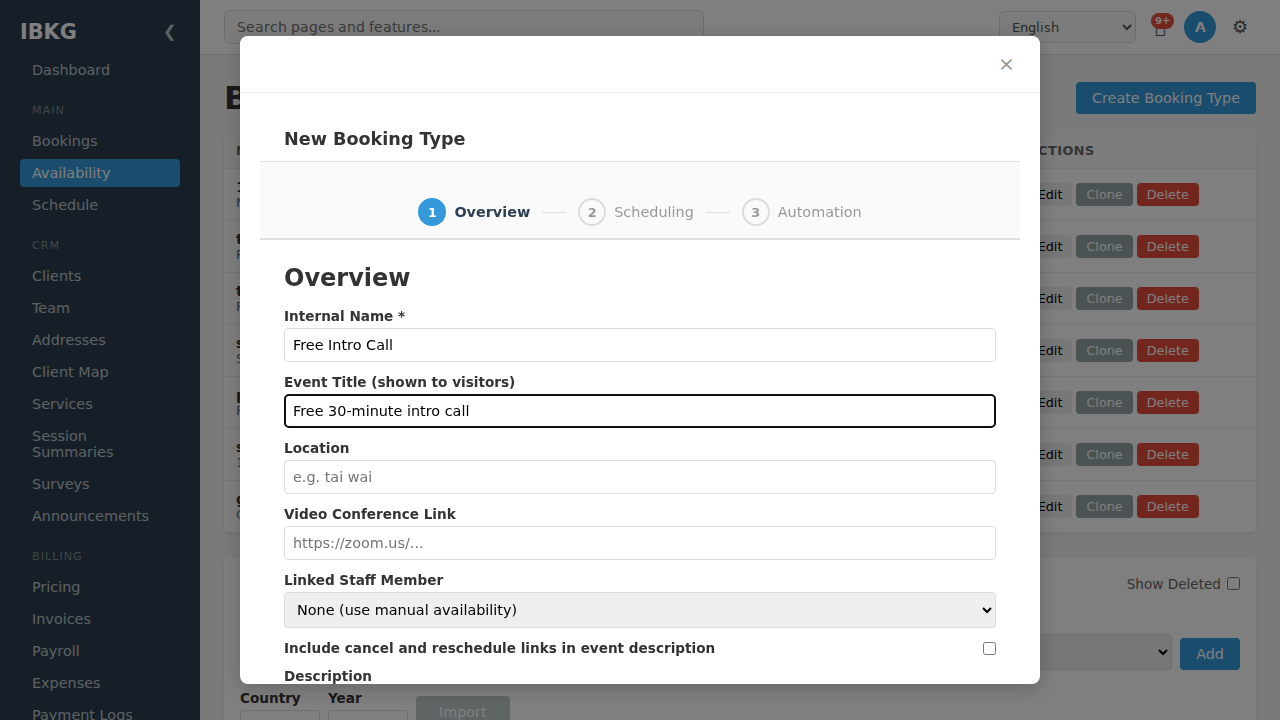
Click Next to move to Scheduling.
3. Step 2 - Scheduling
This step configures when and how clients can book:
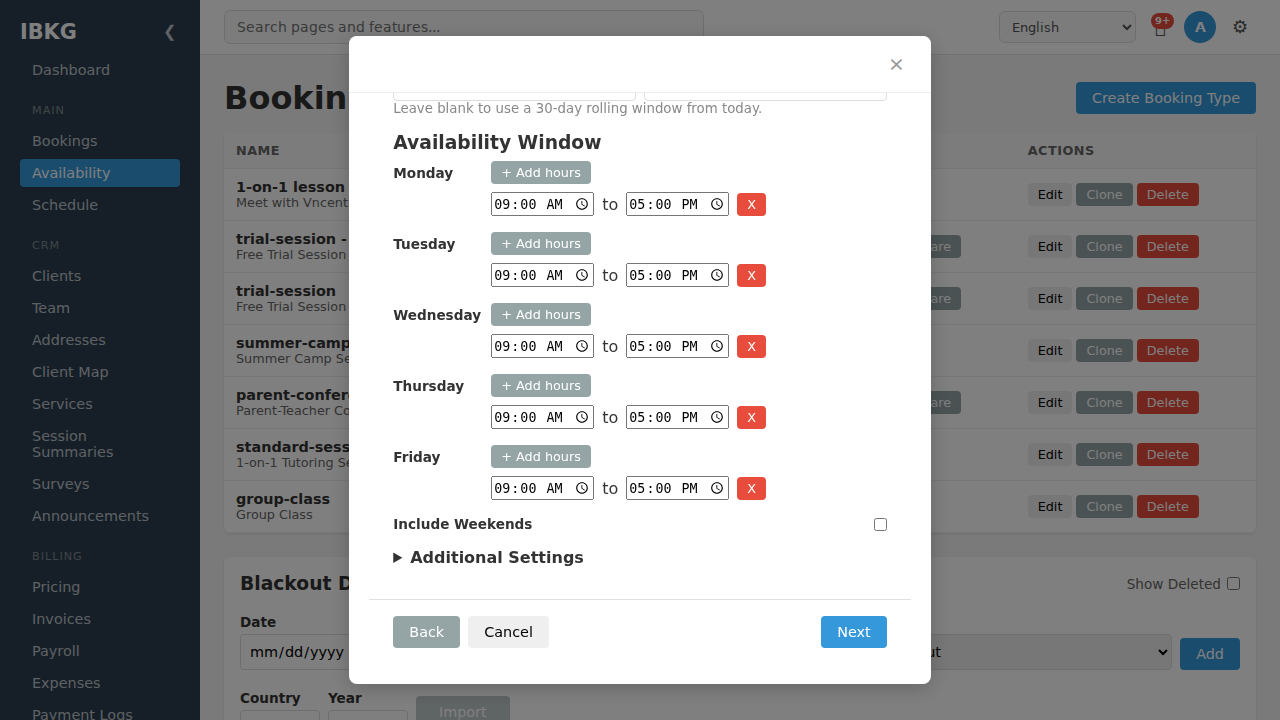
Availability Window
Per day of the week, add one or more hour ranges:
- Click + Add hours to add a slot (e.g. Monday 9:00 AM - 12:00 PM)
- Click the X button to remove a slot
- Multiple slots per day are allowed (e.g. 9-12, 14-17 for a lunch break)
By default: Monday-Friday 9:00 AM - 5:00 PM. Remove days you don't work; add Saturday/Sunday if you do.
Include Weekends
Checkbox: if off (default), Saturday and Sunday are hidden on the booking page regardless of availability. Turn on to allow weekend bookings.
Additional Settings (expandable)
Click Additional Settings to reveal:
- Slot duration - 15 / 30 / 45 / 60 / 90 / 120 minutes. Determines how long each booking is.
- Buffer - padding between bookings (0 / 5 / 10 / 15 / 20 / 30 / 45 / 60 / 90 / 120 minutes). Prevents back-to-back bookings.
- Advance days - how far in the future clients can book (default: 30 days).
- Min notice - how close to the start time clients can still book (0 / 15 / 30 / 60 / 120 / 240 / 1440 minutes). 15 minutes prevents last-second bookings.
- Start increment - which minute offsets from the hour slots can start on (5 / 10 / 15 / 30 / 60). 15-minute increments means slots start at :00, :15, :30, :45.
- Max seats - how many guests can book the same slot (1 for 1-on-1, 4-20 for group classes).
- Booking mode -
pending(review required) orinstant(auto-confirm). - Booking start date / Booking end date - optional; limit bookings to a specific window (e.g. for a summer camp with fixed enrollment dates).
Click Next to move to Automation.
4. Step 3 - Automation
Final step configures guest-facing email and self-service options:
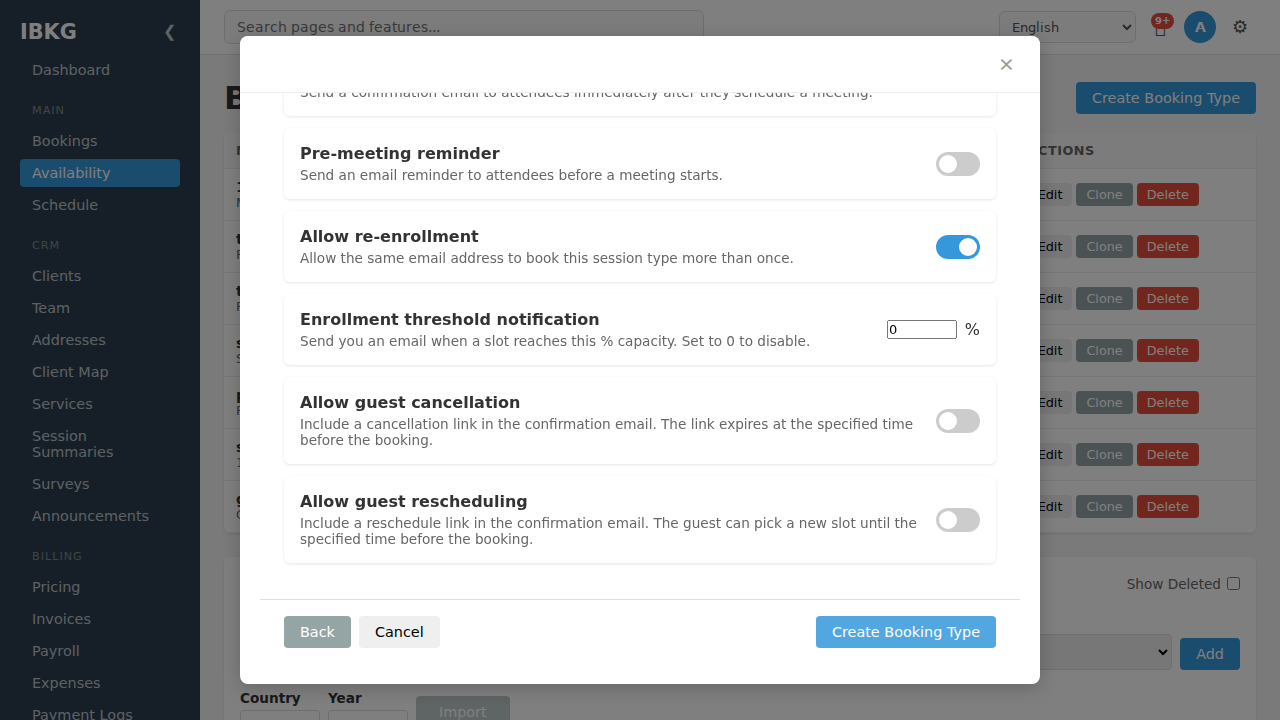
Toggles:
- Confirmation email - send the guest a confirmation immediately on booking (default on)
- Pre-meeting reminder - send a reminder email before the session starts (default off)
- Allow re-enrollment - whether the same email address can book this session type more than once (default on; turn off for limited-seat courses)
- Enrollment threshold notification - percentage of capacity. When a slot reaches this %, FoxCLM emails you an alert. Set to 0 to disable.
- Allow guest cancellation - include a cancellation link in the confirmation email. The link expires at the specified time before the booking.
- Allow guest rescheduling - include a reschedule link. Guest can pick a new slot up until the expiry.
Click Create Booking Type to save.
5. Blackout dates and holidays
Back on the main Availability page, scroll down to Blackout Dates & Holidays:
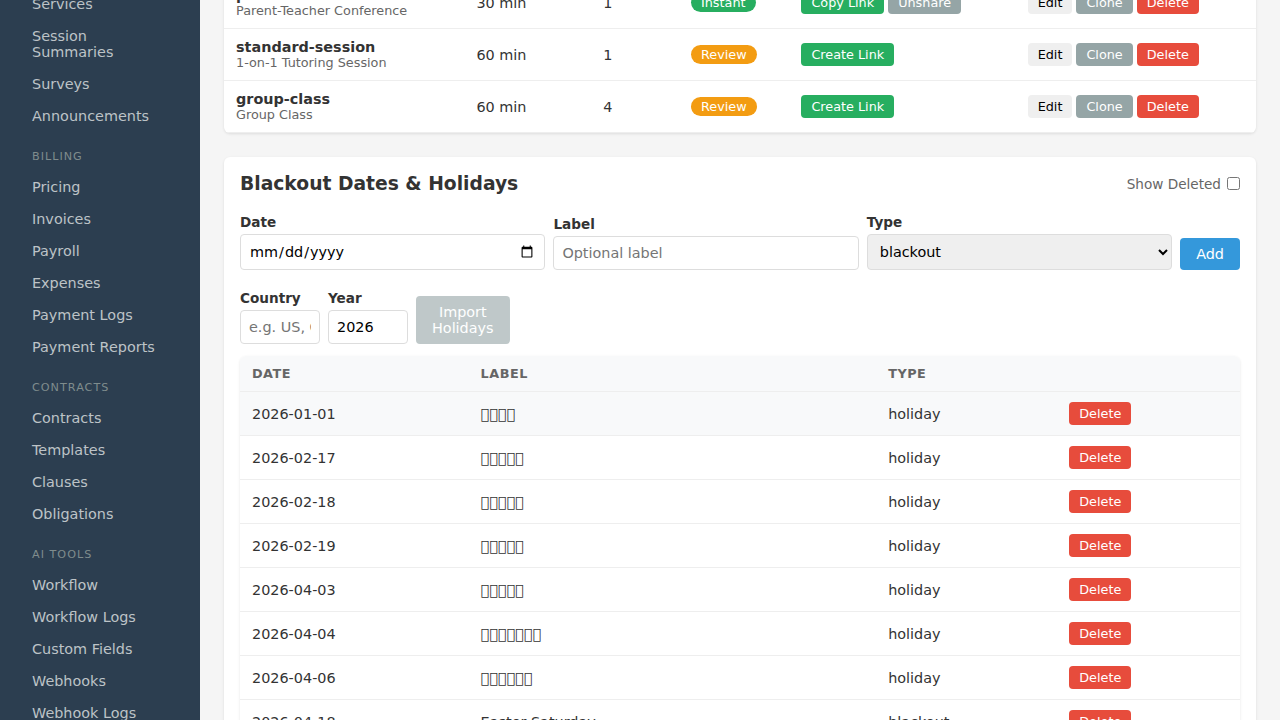
Blackout dates close the booking page on specific days (e.g. public holidays, your vacation, office closures). They apply to ALL booking types - one blackout date blocks bookings everywhere.
Add a single blackout
- Pick a Date
- Add a Label (e.g. "Office closed", "Personal day")
- Set Type -
blackout,birthday, orcustom - Click Add
Import public holidays
Far easier than adding them one by one:
- Type a Country code (e.g.
US,GB,MY,HK,SG) - Enter the Year
- Click Import Holidays
FoxCLM fetches the public holidays for that country/year and adds them as holiday type blackouts.
The list below shows all existing blackouts. Click Delete to remove one.
6. Publish the booking link
Back at the top of the page, find your new booking type in the table. In the Link column, click Create Link. FoxCLM generates a public URL:
https://your-foxclm-domain/book/[token]Copy it and share:
- Website call-to-action button
- Email signature
- Social media bio
- QR code for printed materials
Clients land on your branded booking page, pick a slot, submit their info, and either get instant confirmation (if mode is instant) or land in your Booking Requests inbox for review.
7. Edit or clone a booking type
On the list, click Edit on any row to reopen the 3-step wizard with current values. Click Clone to duplicate a booking type as a starting point for a similar one (saves time if you have many variations of a standard setup).
Common setups
Free trial / intro call
- Duration: 15 or 30 min
- Buffer: 15 min
- Mode:
instant(no friction) - Allow re-enrollment: off (one trial per email)
- Max seats: 1
Standard 1-on-1 session
- Duration: 60 min
- Buffer: 10 min
- Mode:
review(you vet first-time bookings) - Allow guest cancellation: on (with 24h expiry)
- Max seats: 1
Group class
- Duration: 60-90 min
- Max seats: 4-20
- Mode:
instant - Enrollment threshold notification: 80% (get notified when nearly full)
- Allow re-enrollment: on (same client can join multiple group classes)
Multi-day event (camp, workshop)
- Slot duration: 180 min
- Max seats: 8-30
- Booking start / end dates: the enrollment window
- Advance days: long (90+ days)
- Mode:
review(collect payment info before confirming)
Tips
- One booking type per offering. Don't overload a single type with many options - separate types keep availability rules clean.
- Use meaningful internal names.
1-on-1-60is clearer thanbooking1. - Link to a staff member if one specific person delivers the session - FoxCLM uses that staff's configured weekly availability automatically.
- Buffer matters. A 0-minute buffer means clients can book back-to-back sessions with no prep time. 15 minutes is a sensible default.
- Test from an incognito window before publishing - pretend to be a client and make sure the flow works end-to-end.
What's next
- Accepting Your First Booking - handle incoming requests from clients
- Booking Requests reference - more detail on the inbox
- Workflow Actions - send confirmation emails and fire webhooks to external services (e.g. Slack via
call_webhook) when bookings come in