
Appearance
Sending and Sharing an Invoice
Once you've created an invoice, you need to get it to the client. FoxCLM gives you two paths:
- Send - email the invoice directly to the linked clients
- Share - generate a public URL with a QR code; paste into SMS, chat, or email
Both result in a client-facing page where they can view and (optionally) pay. This tutorial walks through both.
Prerequisites: an invoice with at least one client linked. See Your First Invoice if you haven't created one yet.
1. The invoice actions panel
Open Invoices in the sidebar. Each row has an Actions column on the right with all the things you can do:
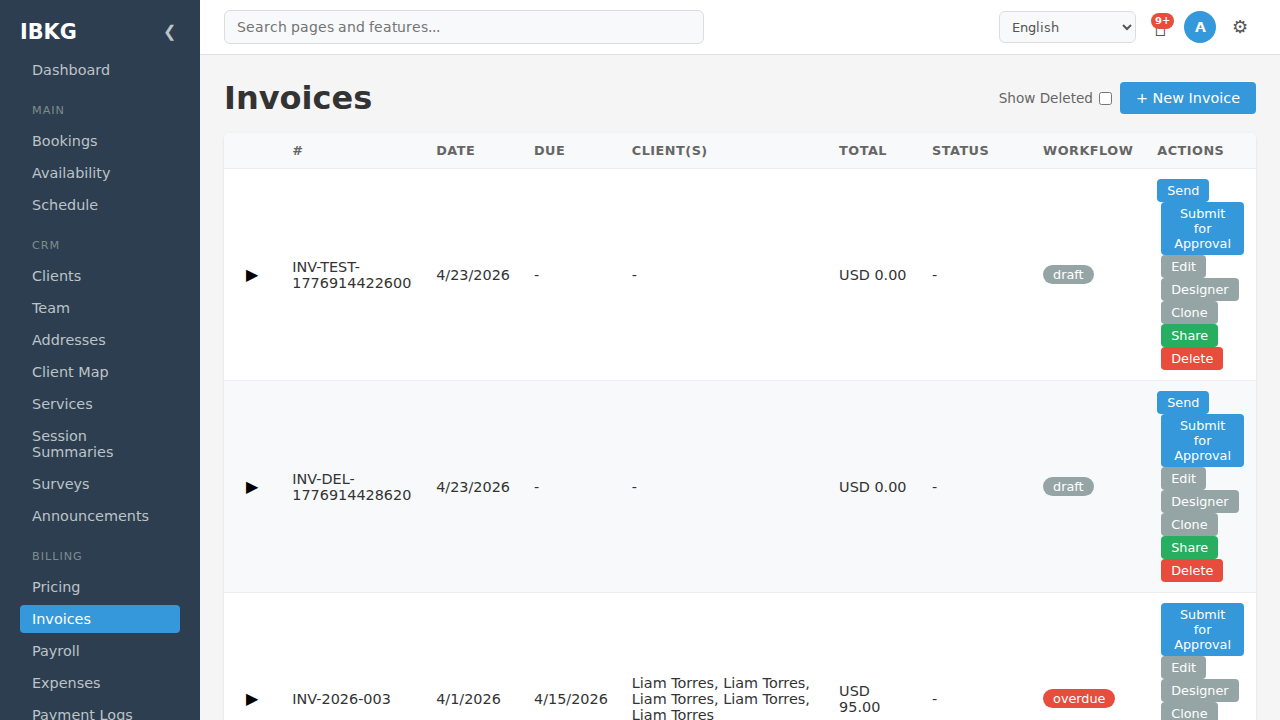
Action reference:
| Button | What it does |
|---|---|
| Send | Emails the invoice to every linked client |
| Submit for Approval | Routes the invoice to an admin before sending (if you've enabled Invoice Approval Lock) |
| Edit | Opens the full line-item editor |
| Designer | Opens the visual designer |
| Clone | Duplicates the invoice with an incremented invoice number |
| Share | Generates a public URL (turns into Copy Link / Unshare once active) |
| Delete | Soft-deletes - recoverable from Recycle Bin |
2. Sending by email
Click Send on any invoice. FoxCLM:
- Looks up every client linked to the invoice.
- Pulls their email from
client_info.email. - Sends a templated email with a link to the public invoice page.
- Moves the invoice workflow state from
drafttosent. - Writes an entry in the workflow history.
If you've configured a send_invoice_email workflow action on the draft -> sent transition, it also fires any custom subject line and body you've defined.
What the client sees in their email
A short email with your company branding, the invoice number, the total, and a View Invoice button that links to the share page.
3. Sharing without email
Click Share on a draft invoice. FoxCLM generates a unique URL and the row expands to show it:
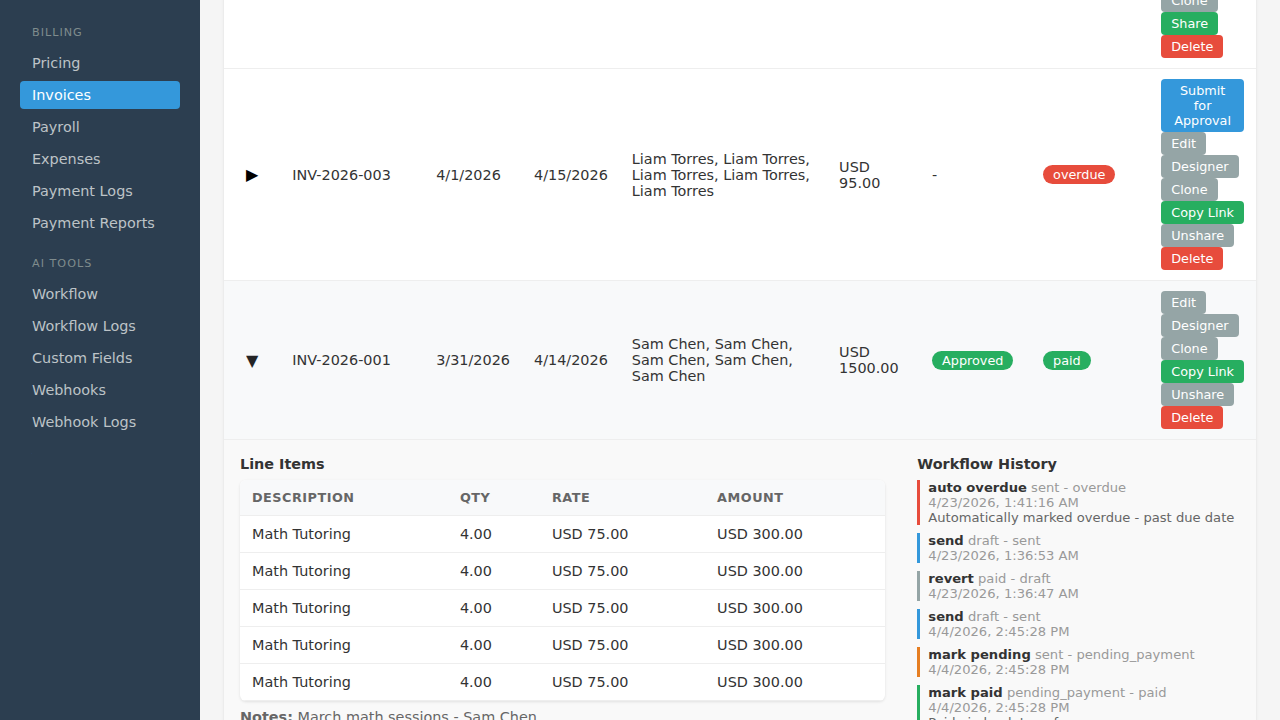
The expanded row shows:
- Line Items - everything that will be billed (Description, Qty, Rate, Amount)
- Workflow History - a timestamped audit log of every status change with the reason (e.g. "auto overdue - Automatically marked overdue - past due date", "send draft - sent", "revert paid - draft")
Once shared, the action buttons change:
- Copy Link - copy the full URL to your clipboard
- Unshare - invalidate the token; anyone holding the old URL gets a 404
You can also generate a QR code from the share to display on mobile or print on physical invoices.
4. The client-facing invoice page
Whether sent by email or shared manually, the client lands on the public viewer page:
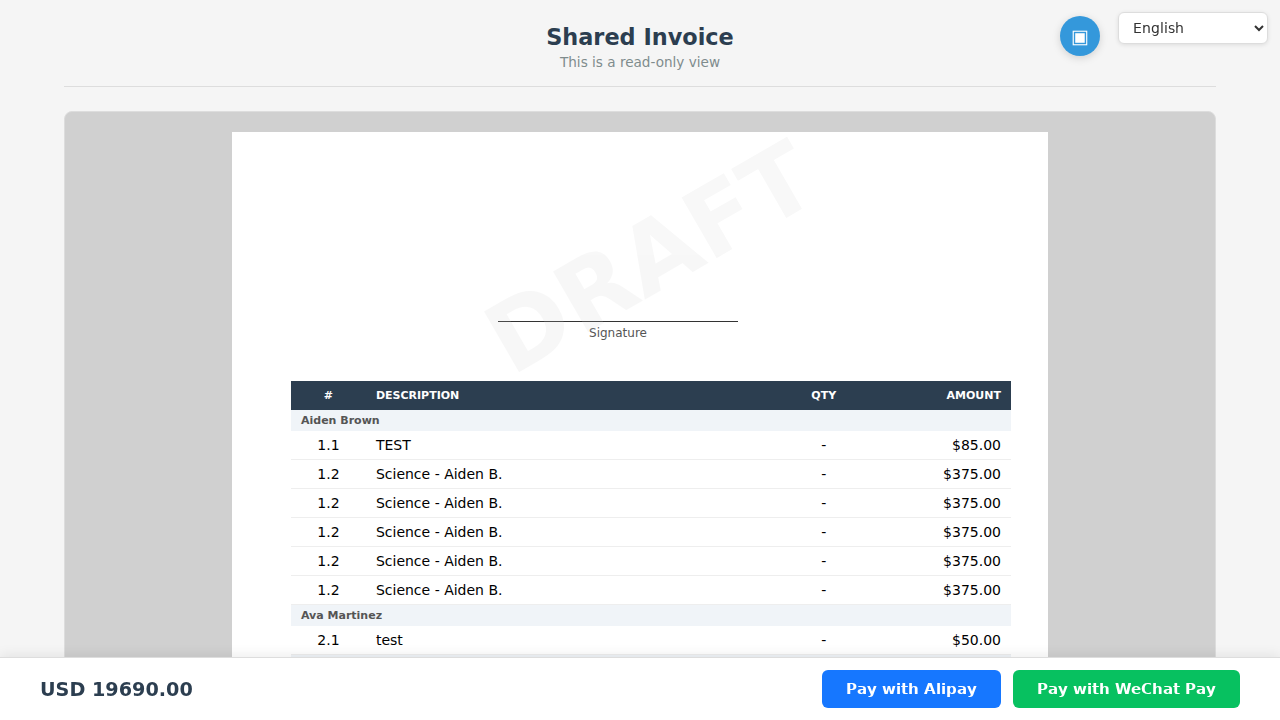
Key elements:
- Header - "Shared Invoice" title and tagline
- Language selector - clients can switch languages (English, Chinese, Malay, Spanish, Korean)
- Rendered invoice - the full invoice as designed, with your branding
- Status watermark - e.g. "DRAFT" or "PAID" overlay
- Line items table - grouped by client if the invoice has multiple billable parties
- Bottom bar (sticky) - total amount and payment buttons
If you enabled Show payment link on shared invoice during creation:
- Pay with Alipay button - available for AUD, CAD, EUR, GBP, HKD, JPY, MYR, NZD, SGD, USD
- Pay with WeChat Pay button - available for CNY only
Clicking either redirects the client to Stripe Checkout. After successful payment, Stripe sends a webhook to FoxCLM, which:
- Records a
payment_recordsentry with the Stripe Payment Intent ID. - Advances the invoice workflow state to
paid. - Fires any
send_paid_confirmationworkflow action. - Changes the share page message to "Payment received - thank you!".
5. Revoking or refreshing shares
- Unshare any time to invalidate the URL.
- Re-share to generate a new URL (old one stays dead).
Unsharing doesn't delete anything - it just revokes public access.
Automating send and share
Combine these with workflow actions to eliminate the manual click:
| Transition | Actions |
|---|---|
draft -> sent | send_invoice_email, share_invoice |
sent -> overdue | send_overdue_notice |
Any -> paid | send_paid_confirmation, unshare_invoice |
With this setup, clicking Send once handles the whole lifecycle. No manual follow-ups.
What's next
- Invoice Workflow - build the status transitions that drive automation
- Payments - Stripe setup for Alipay and WeChat Pay
- Invoice Designer - customise how the shared page looks