
Appearance
Setting Up a Recurring Class
Most tutoring, coaching, and class-based businesses run the same session every week. FoxCLM lets you set up a recurring class once and have it appear on the calendar automatically every week. This tutorial shows how.
Prerequisites: you should already know how to create your first session. This tutorial picks up from step 4 of that flow.
1. Open the new session modal
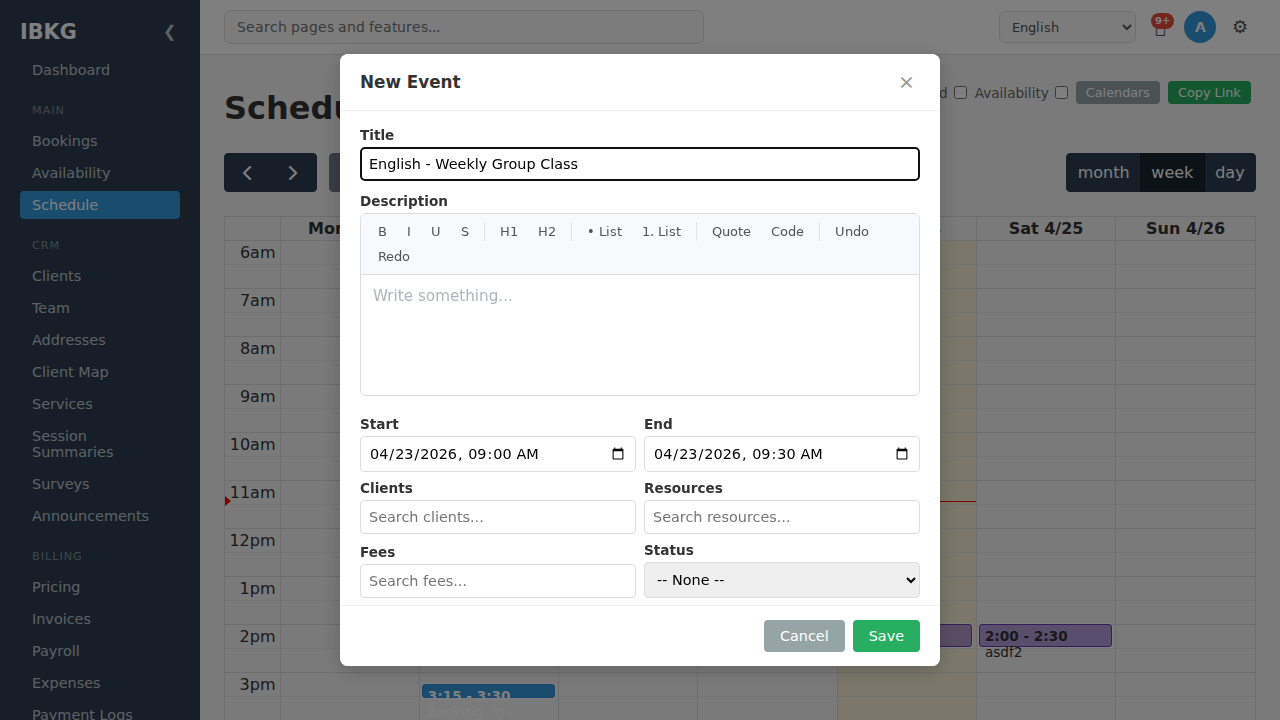
Sign in, go to Schedule, and click any empty time slot to open the New Event modal. Fill in:
- Title - e.g. "English - Weekly Group Class"
- Start / End - the time of the first occurrence
Scroll down until you see the Repeat section.
By default, new sessions are one-off (Single event). Keep this selected if you just want a single class.
2. Switch to Recurring
Click the Recurring radio button. A configuration panel expands below.
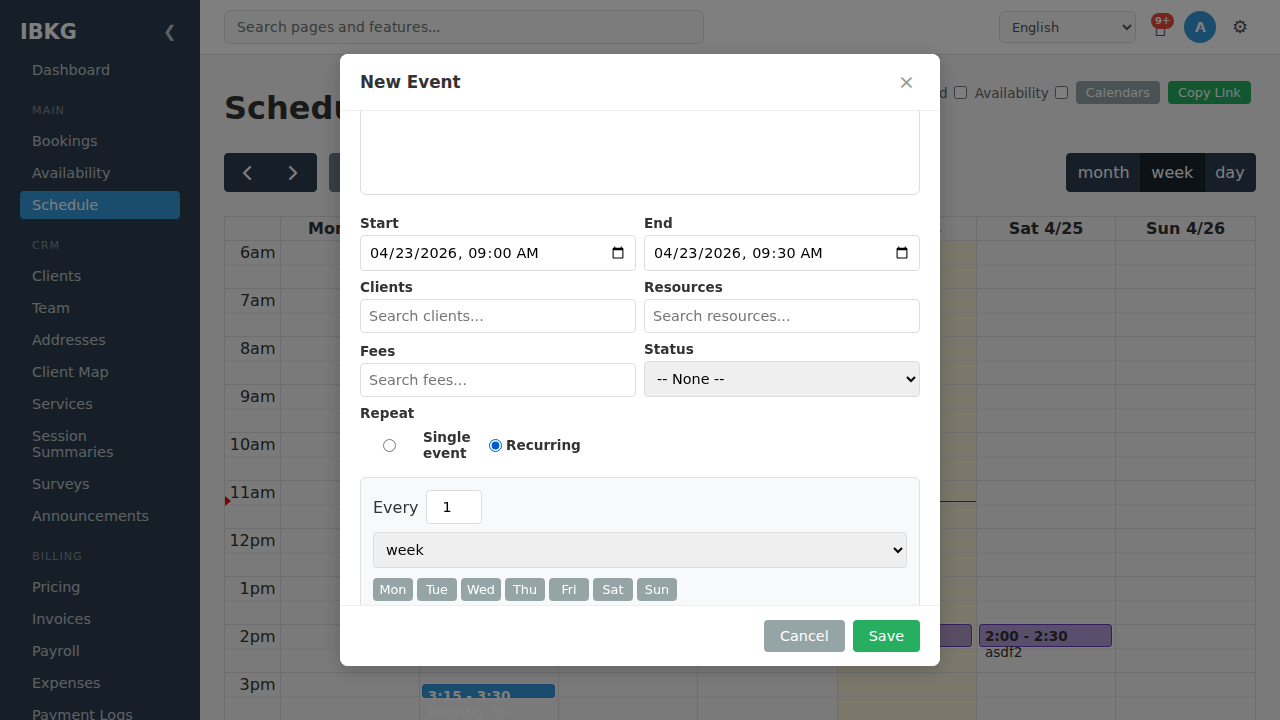
Default settings:
- Every 1 week - fires once per week
- No days selected - add the days of the week this class runs
- Ends: Never - recurs forever
3. Pick the days of the week
Click each day this class runs. The buttons toggle on (dark blue) and off (grey). A class that runs Monday, Wednesday, and Friday would look like this:
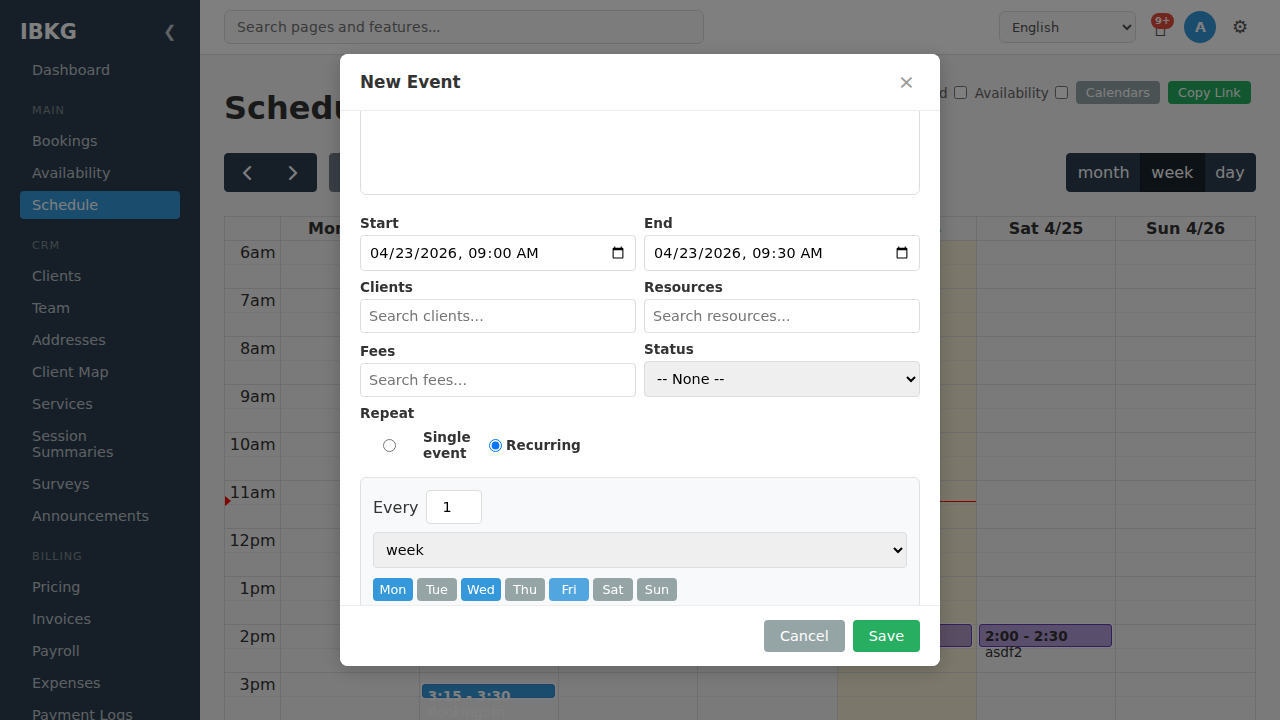
Below the controls, FoxCLM shows the raw iCal recurrence rule it's building:
FREQ=WEEKLY;BYDAY=MO,WE,FRYou don't need to understand the syntax - FoxCLM generates it for you. The preview is there if you want to verify the rule matches your expectations.
4. Set an end condition
By default a recurring class continues forever. You'll usually want it to stop at some point. Three options:
- Never - continues indefinitely (default)
- After N times - stops after a specific number of occurrences
- On date - stops on a specific date
For a 12-week term, pick After and set the count to 12:
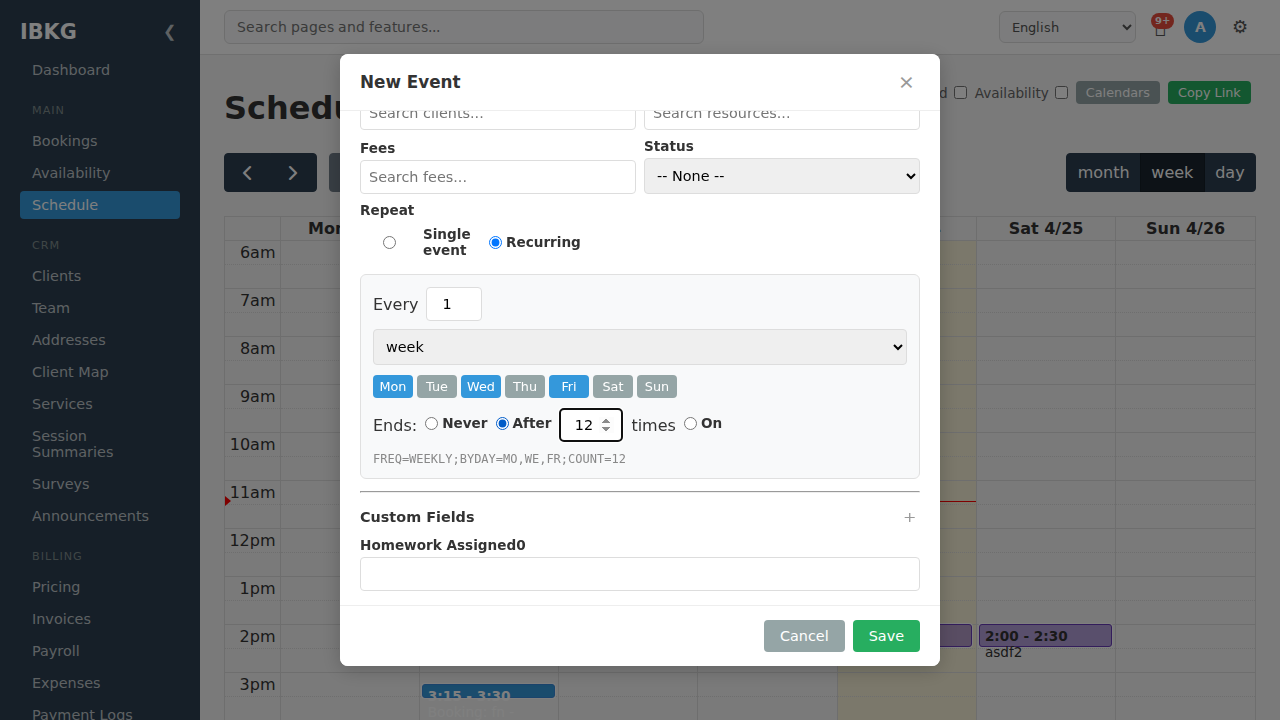
The rule preview updates:
FREQ=WEEKLY;BYDAY=MO,WE,FR;COUNT=12For a term that ends on a known date, pick On and choose the date. FoxCLM will generate occurrences up to (and including) that date.
5. Save
Click Save. FoxCLM creates a single recurring event that expands into multiple calendar occurrences - you'll see them appear week by week on the calendar.
Editing a single occurrence
Because a recurring class is really one event with many occurrences, clicking any instance on the calendar shows the Occurrence panel first:
| Button | Effect |
|---|---|
| Mark as Occurred | Logs just this occurrence as completed (the parent keeps recurring) |
| Skip This Occurrence | Cancels just this occurrence (e.g. public holiday) |
| Edit This Occurrence | Opens the full editor to change just this one instance (e.g. different time) |
If you want to change the recurring pattern itself (e.g. drop Friday from the schedule), open any occurrence and click Edit This Occurrence, then scroll to Repeat and adjust.
Copying a recurring event to a new week
When scheduling a new term, you often want to duplicate last term's schedule. FoxCLM has a Copy Week feature - right-click on any day header in the week view and pick Copy week to next week.
What's next
- Booking Requests - let clients request sessions themselves
- Statuses & Workflow - trigger emails and status changes as sessions happen
- Payroll - pay staff based on sessions taught