
Appearance
Accepting Your First Booking
FoxCLM gives you a public booking page where new or existing clients can pick a time and request a session. You review each request, assign a staff member, and approve or reject. This tutorial shows the full flow from both sides.
Part 1: The client's view
Each Booking Type (e.g. "Free Trial Session", "1-on-1 Lesson", "Group Class") has its own public URL. When a client opens that URL, they see a calendar with your available time slots.
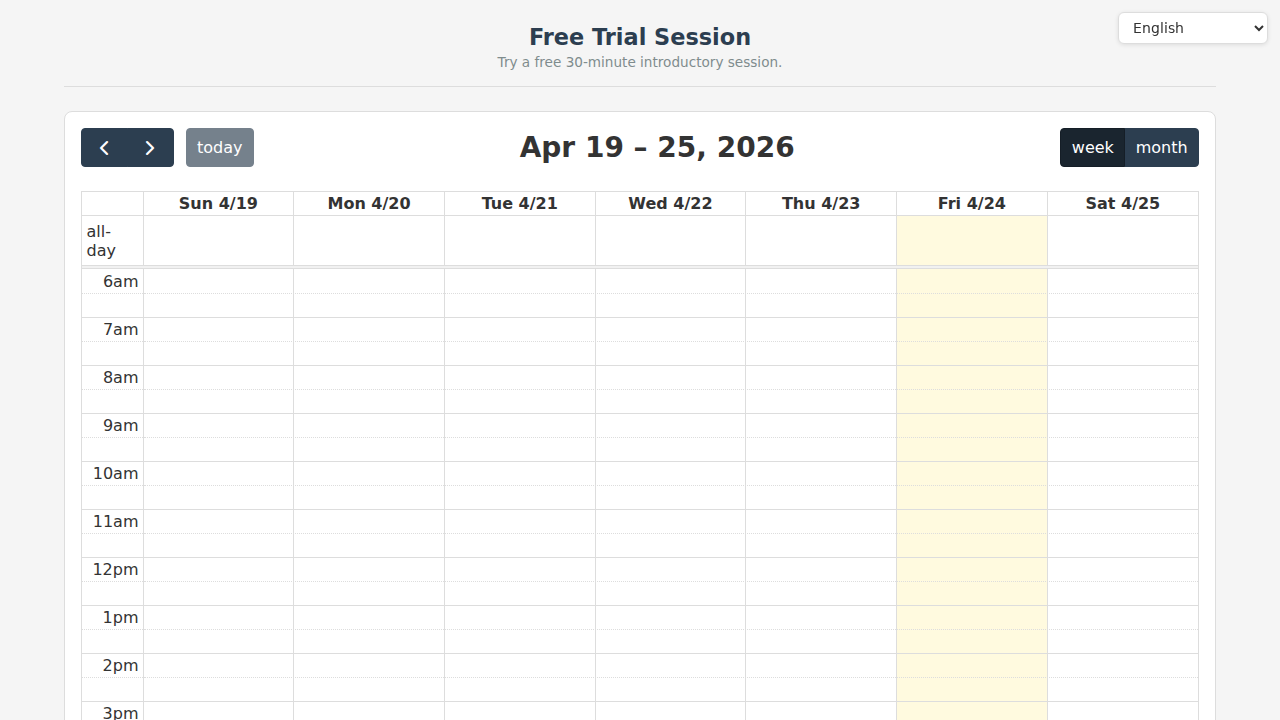
Key elements:
- Title and description - what you called this booking type (configured in Settings -> Booking Types)
- Calendar - switches between week and month views. Highlighted yellow slots are available.
- Today / prev / next - navigate dates
- Language selector - clients can switch language if you have i18n enabled
After picking a time, the client enters their name, email, phone, and optional message. They click Submit and the request lands in your Booking Requests inbox.
Part 2: The Booking Requests page
Click Bookings in the sidebar to open your inbox.
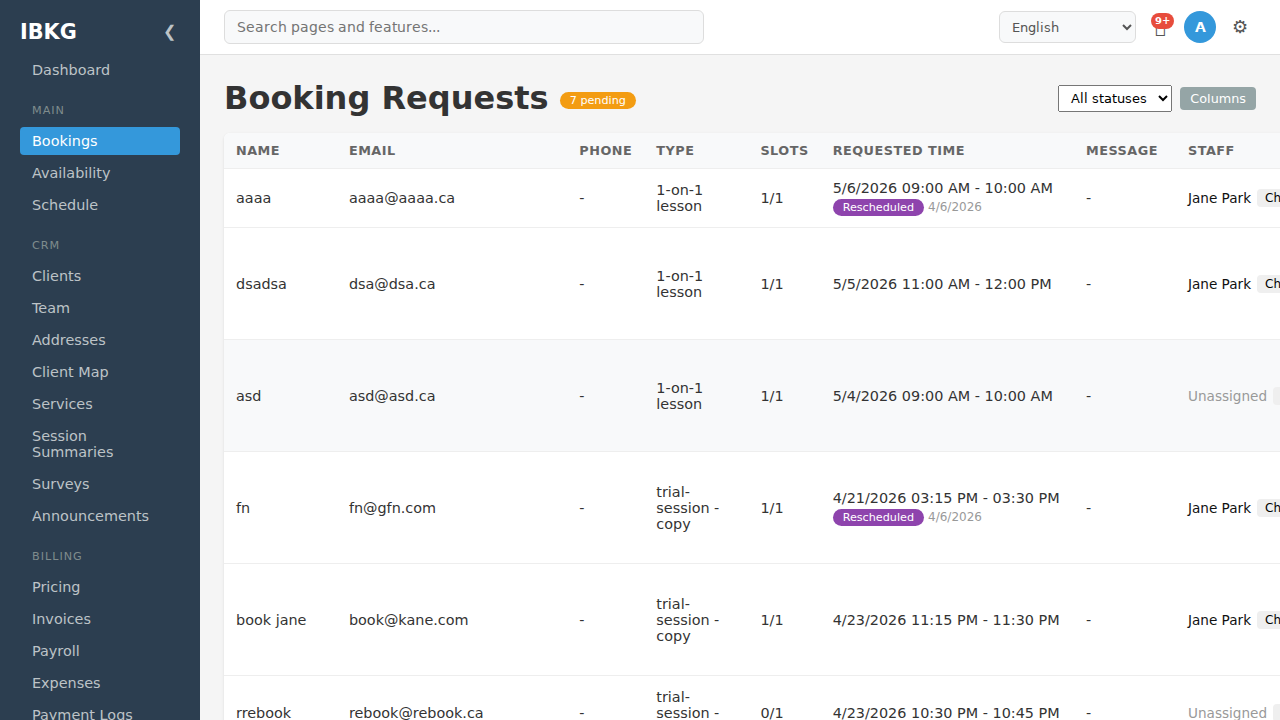
The top bar shows:
- Booking Requests heading with a "N pending" badge - your current backlog
- Status filter - show All / Pending / Approved / Rejected / Cancelled
- Columns - toggle which columns you want to see (Name, Email, Phone, Type, Slots, Requested Time, Message, Staff, Status)
Each row is one request with:
| Column | What it shows |
|---|---|
| Name / Email / Phone | Guest contact details |
| Type | Which booking type they picked (e.g. "standard-session", "trial-session") |
| Slots | How many slots they requested (1/1 = single slot) |
| Requested Time | The time slot they picked |
| Message | Free-form note they wrote |
| Staff | Who is assigned to handle this request |
| Status | Pending / Approved / Rejected / Cancelled |
Pending rows have additional Approve and Reject buttons on the right.
Part 3: Assigning staff
If you have multiple staff or collaborators, each booking needs someone to handle it. Click the Assign button on any unassigned row (or Change on an already-assigned one) to open the assignment modal:
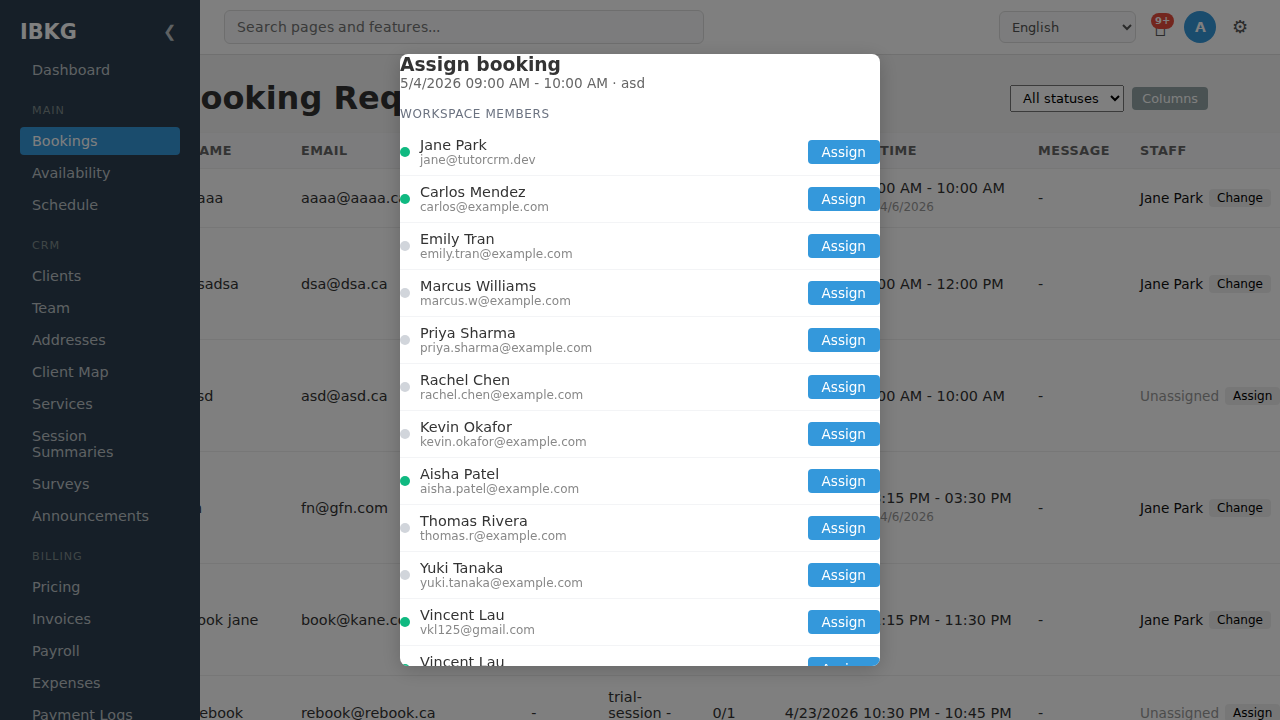
The modal lists every workspace member with:
- Availability indicator - green dot if the person is available at the requested time, grey if not
- Name and email
- Assign button
Click Assign next to the person you want to handle the booking. They'll receive a notification.
If nobody is available, the dots are all grey - you'll need to negotiate a different time with the client or decline.
Part 4: Approving or rejecting
Once a staff member is assigned, click Approve or Reject on the row:
- Approve - FoxCLM creates a session on the calendar, sends a confirmation email to the client, and marks the request as
Approved. - Reject - the request is marked
Rejected. By default no rejection email is sent; add asend_booking_rejectionworkflow action to send one automatically. - Cancel - for previously approved bookings that need to be undone. The client is notified and the session is removed from the calendar.
Automating with workflow actions
The full power of booking comes from automation. Combine booking request statuses with workflow actions to:
| Trigger | Action | Outcome |
|---|---|---|
| New request arrives | send_new_request_alert | Email you the moment a client submits |
| Request approved | send_booking_confirmation | Confirmation email to client |
| Request rejected | send_booking_rejection | Rejection email to client |
| Booking cancelled | send_booking_cancellation | Cancellation email to client |
| Client is new | send_welcome_email | First-time welcome after their first booking |
Set these up once and the booking flow runs end-to-end without manual emails.
Setting up a booking type
For this tutorial we used the seeded Free Trial Session booking type. To add your own:
- Go to Settings -> Booking Types.
- Click + New Booking Type.
- Configure:
- Name and Title - short name and public-facing title
- Description - what the session is
- Slot duration - 30 / 60 / 90 min
- Buffer - padding between bookings
- Advance days - how far ahead clients can book (e.g. 30)
- Min notice - how close to the start time clients can still book (e.g. 15 min)
- Include weekends - whether Saturday/Sunday are bookable
- Booking mode -
pending(needs approval) orauto-approve
- Save, then click Share to get the public URL.
Copy that URL into your website, email signature, or marketing pages.
What's next
- Availability Rules - control when clients can book
- Workflow Actions - automate confirmation and rejection emails
- Your First Session - the calendar view