Appearance
Setting Up a Recurring Class
Most tutoring, coaching, and class-based businesses run the same session every week. FoxCLM lets you set up a recurring class once and have it appear on the calendar automatically every week. This tutorial shows how.
Prerequisites: you should already know how to create your first session. This tutorial picks up from step 4 of that flow.
1. Open the new session modal
Sign in, go to Schedule, and click any empty time slot to open the New Event modal. Fill in:
- Title - e.g. "English - Weekly Group Class"
- Start / End - the time of the first occurrence
Scroll down until you see the Repeat section.
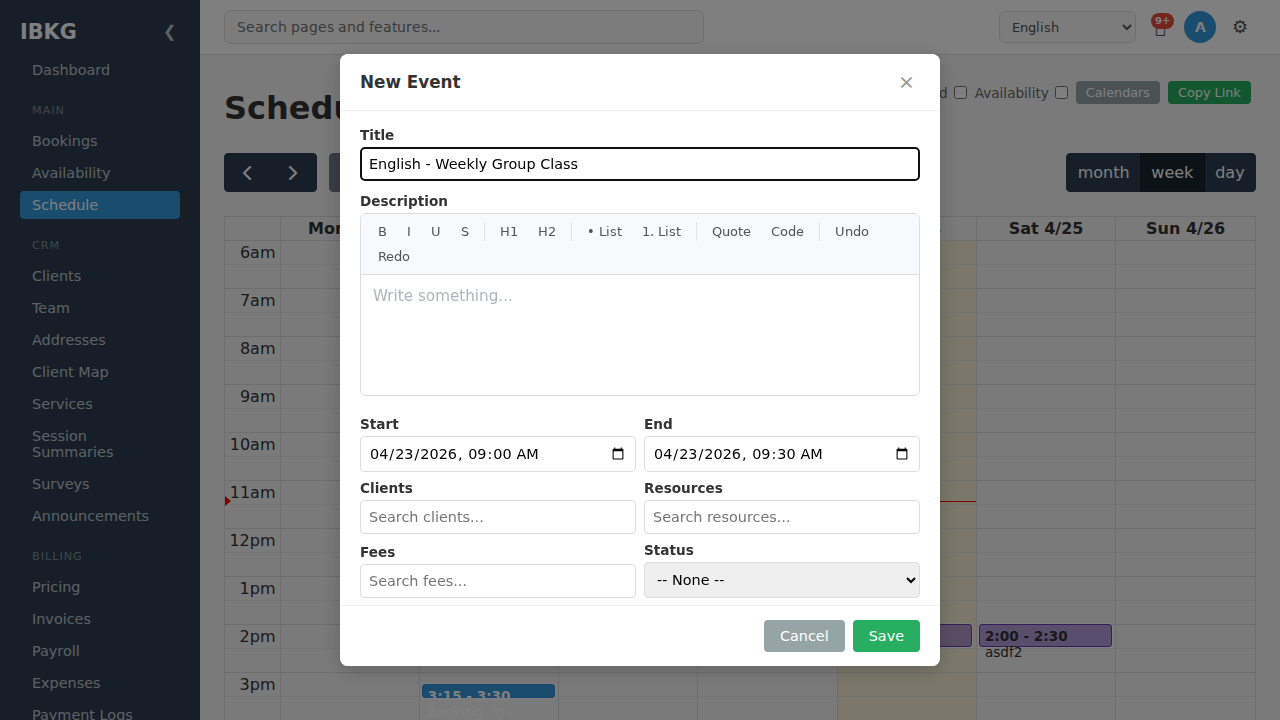
By default, new sessions are one-off (Single event). Keep this selected if you just want a single class.
2. Switch to Recurring
Click the Recurring radio button. A configuration panel expands below.
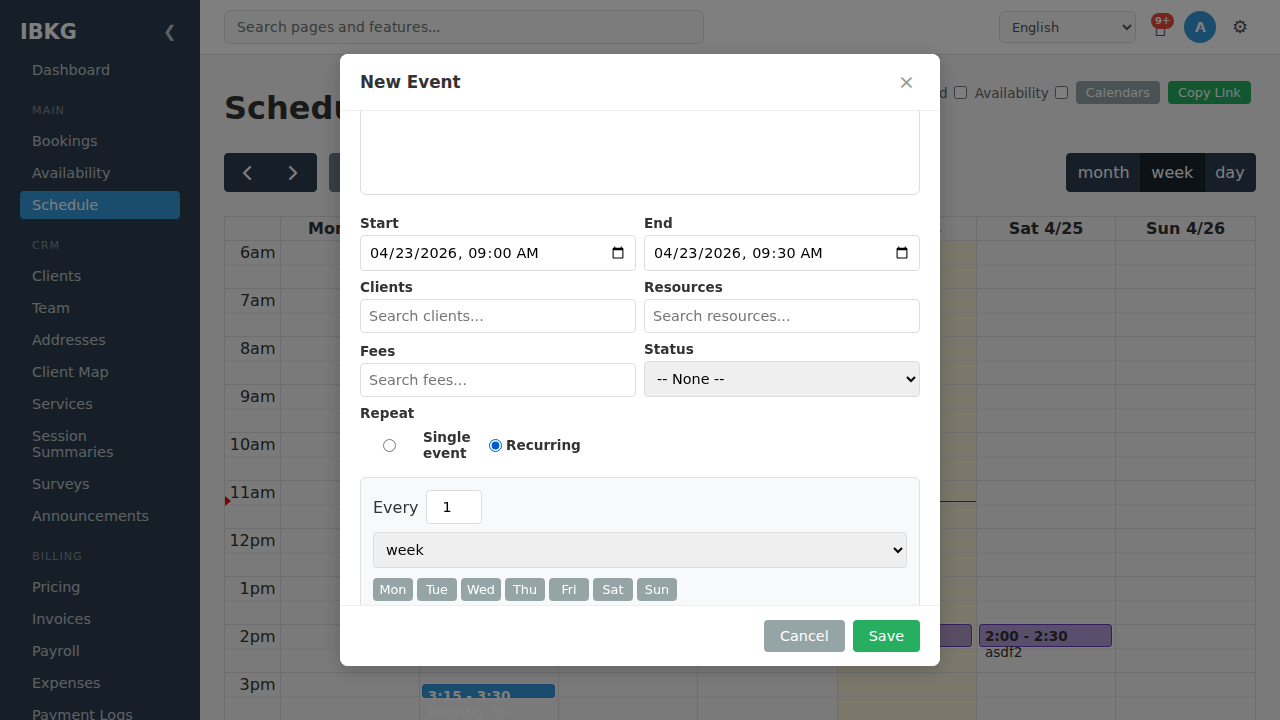
Default settings:
- Every 1 week - fires once per week
- No days selected - add the days of the week this class runs
- Ends: Never - recurs forever
3. Pick the days of the week
Click each day this class runs. The buttons toggle on (dark blue) and off (grey). A class that runs Monday, Wednesday, and Friday would look like this:
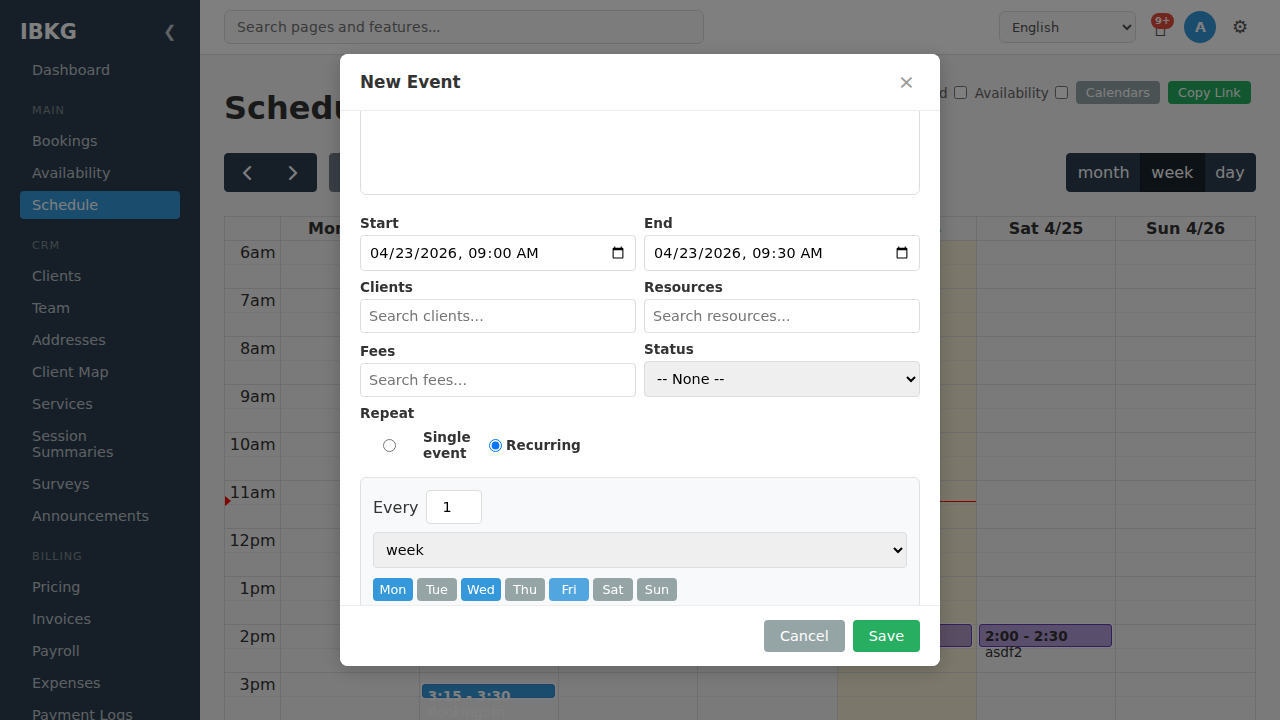
Below the controls, FoxCLM shows the raw iCal recurrence rule it's building:
FREQ=WEEKLY;BYDAY=MO,WE,FRYou don't need to understand the syntax - FoxCLM generates it for you. The preview is there if you want to verify the rule matches your expectations.
4. Set an end condition
By default a recurring class continues forever. You'll usually want it to stop at some point. Three options:
- Never - continues indefinitely (default)
- After N times - stops after a specific number of occurrences
- On date - stops on a specific date
For a 12-week term, pick After and set the count to 12:
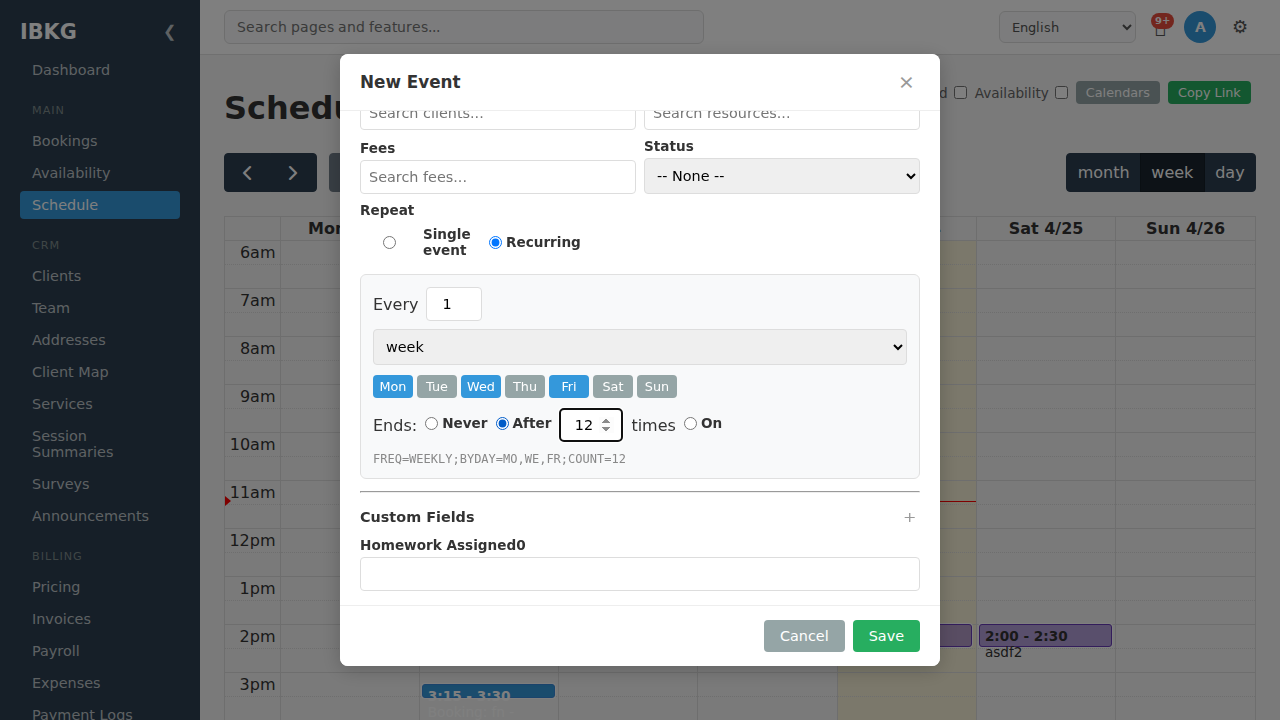
The rule preview updates:
FREQ=WEEKLY;BYDAY=MO,WE,FR;COUNT=12For a term that ends on a known date, pick On and choose the date. FoxCLM will generate occurrences up to (and including) that date.
5. Save
Click Save. FoxCLM creates a single recurring event that expands into multiple calendar occurrences - you'll see them appear week by week on the calendar.
Editing a single occurrence
Because a recurring class is really one event with many occurrences, clicking any instance on the calendar shows the Occurrence panel first:
| Button | Effect |
|---|---|
| Mark as Occurred | Logs just this occurrence as completed (the parent keeps recurring) |
| Skip This Occurrence | Cancels just this occurrence (e.g. public holiday) |
| Edit This Occurrence | Opens the full editor to change just this one instance (e.g. different time) |
| Edit Series | Opens the full editor for the whole recurring event, including the Repeat pattern |
If you want to change the recurring pattern itself (e.g. drop Friday from the schedule), open any occurrence and click Edit Series, then scroll to Repeat and adjust. (Edit This Occurrence only detaches and edits that single instance - it does not change the series.)
Copying a recurring event to a new week
When scheduling a new term, you often want to duplicate last term's schedule. FoxCLM has a Copy Week feature - switch the Scheduler to List view, click Week to show a full week range, then click Copy to Next Week. Every event in that week is copied into the following week.
What's next
- Booking Requests - let clients request sessions themselves
- Statuses & Workflow - trigger emails and status changes as sessions happen
- Payroll - pay staff based on sessions taught