Appearance
Creating Contracts
From the Contracts page
- Click New Contract at the top of the list.
- Fill in the modal:
- Title (required)
- Type - NDA, MSA, SOW, Service Agreement, Lease, Amendment, Other
- Contract number - auto-suggested (e.g.
CT-2026-0105) - Template (optional) - pick a template to pre-fill content
- Value / Currency - contract amount and 3-letter code
- Start / End date - effective window
- Auto-renew at end date - checkbox
- Click Create. FoxCLM creates the contract in
Draftstatus and opens the editor.
The editor
The editor has six tabs, each serving a distinct purpose:
Details tab
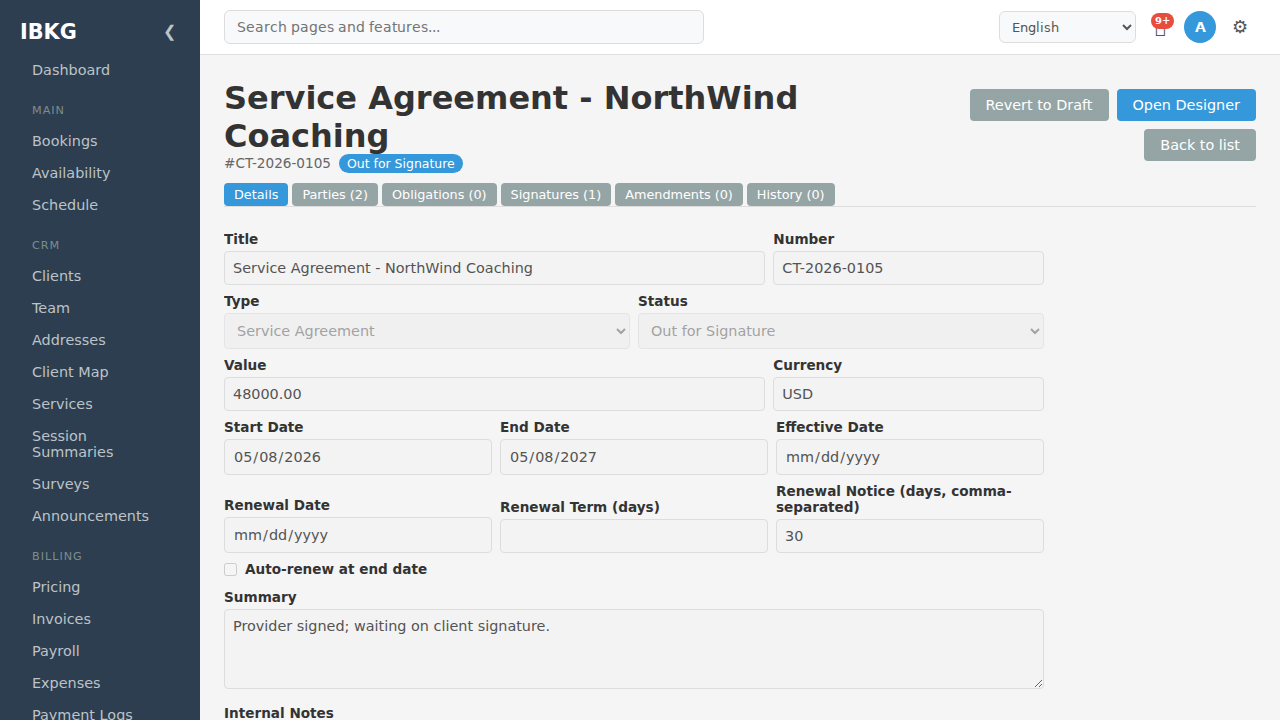
Core metadata:
- Title, Number, Type, Status
- Value / Currency
- Start Date, End Date, Effective Date
- Renewal Date, Renewal Term (days), Renewal Notice (days, comma-separated) - how many days before end to start warning
- Auto-renew at end date checkbox
- Summary - short description
- Internal Notes - private comments not shown to external parties
The top-right shows Open Designer (visual layout) and Back to list. Once a contract leaves Draft the editor locks - use Clone to new Draft (a fresh editable copy; the original stays locked) or Amend to make further changes.
Parties tab
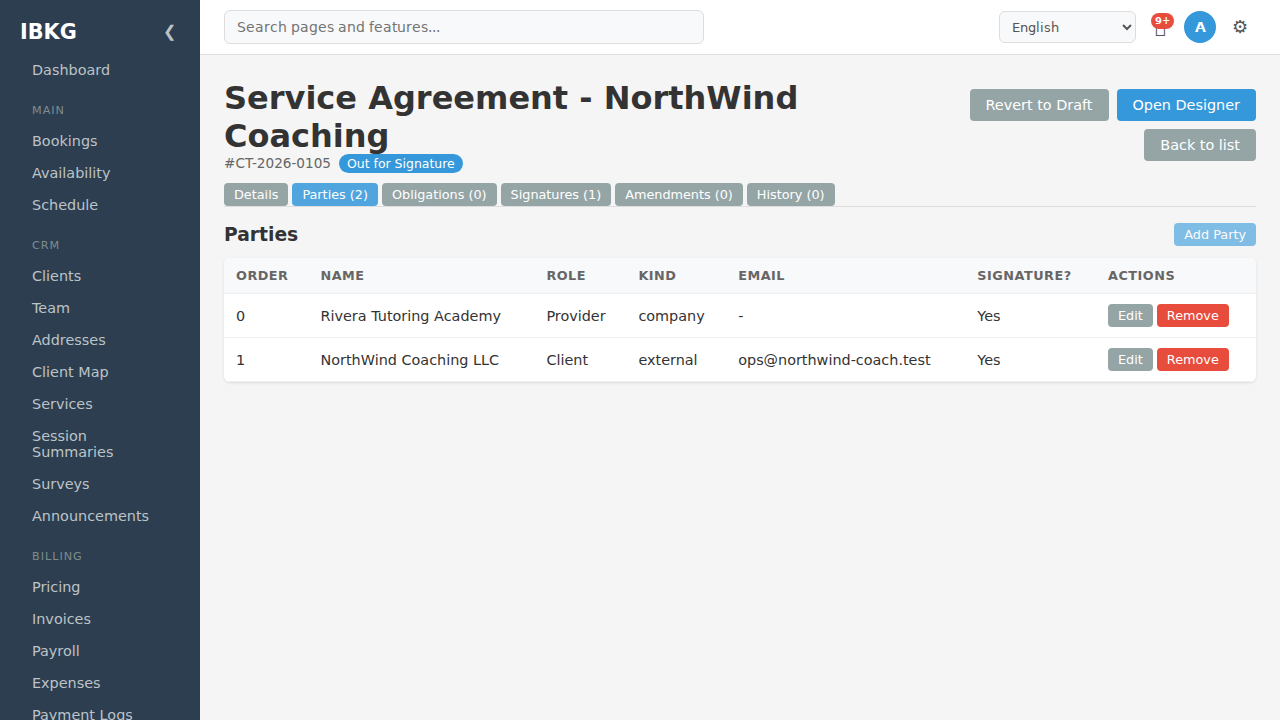
One row per party with columns: Order, Name, Role, Kind, Email, Signature (Yes / No), actions.
Click Add Party to add:
- Kind -
client(from your client list),company(from your Business Profile),staff(from your team),external(email + address) - Display name (required)
- Role - e.g. Provider, Client, Vendor, Guarantor, Witness
- Signing order - numeric; controls the signing page layout
- Requires signature - toggle; if off, party is informational only
- External email / address - for
externalkind
Obligations tab
Tracks commitments with due dates. See Obligations.
Signatures tab
Shows each signature with signer name, type (typed / drawn), and timestamp. Generate signing links per party from here. See Signatures.
Amendments tab
Lists child amendments linked via parent_contract_id. Click to navigate. See Amendments & Renewals.
History tab
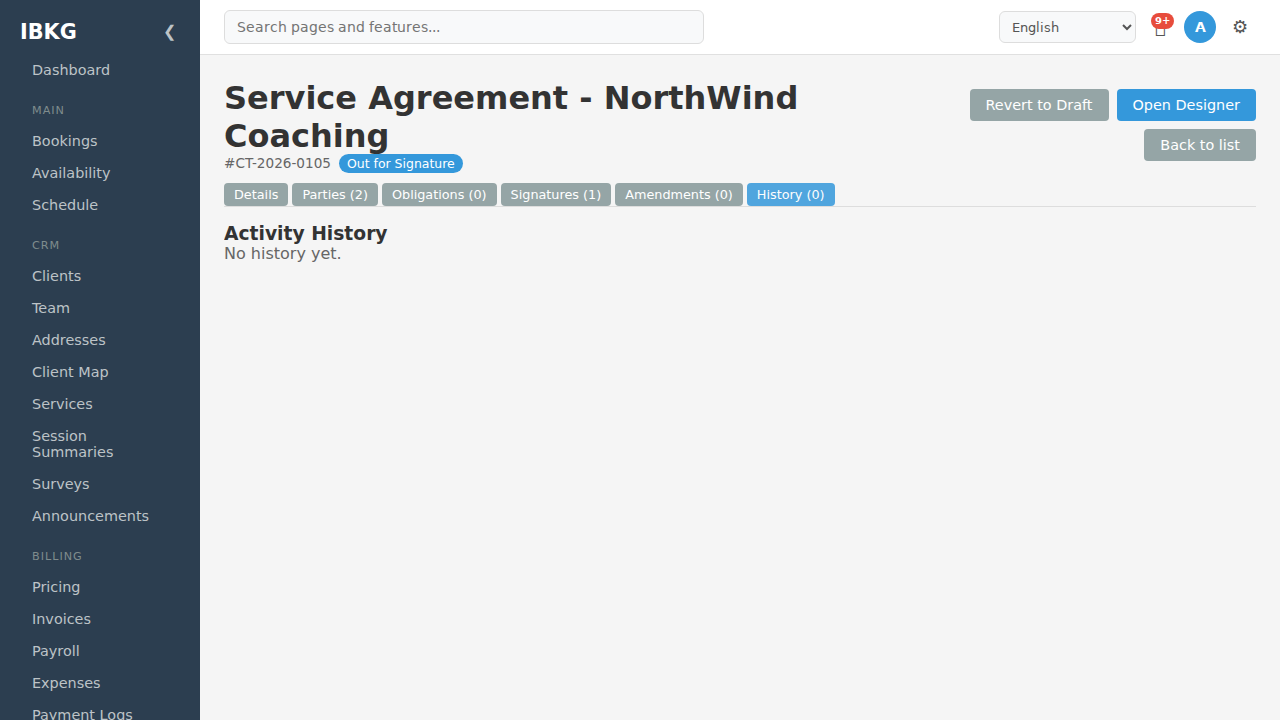
Append-only audit log: every status change, action, and user + timestamp + optional notes.
Custom content
Click Open Designer (top-right of any tab) for drag-and-drop layout:
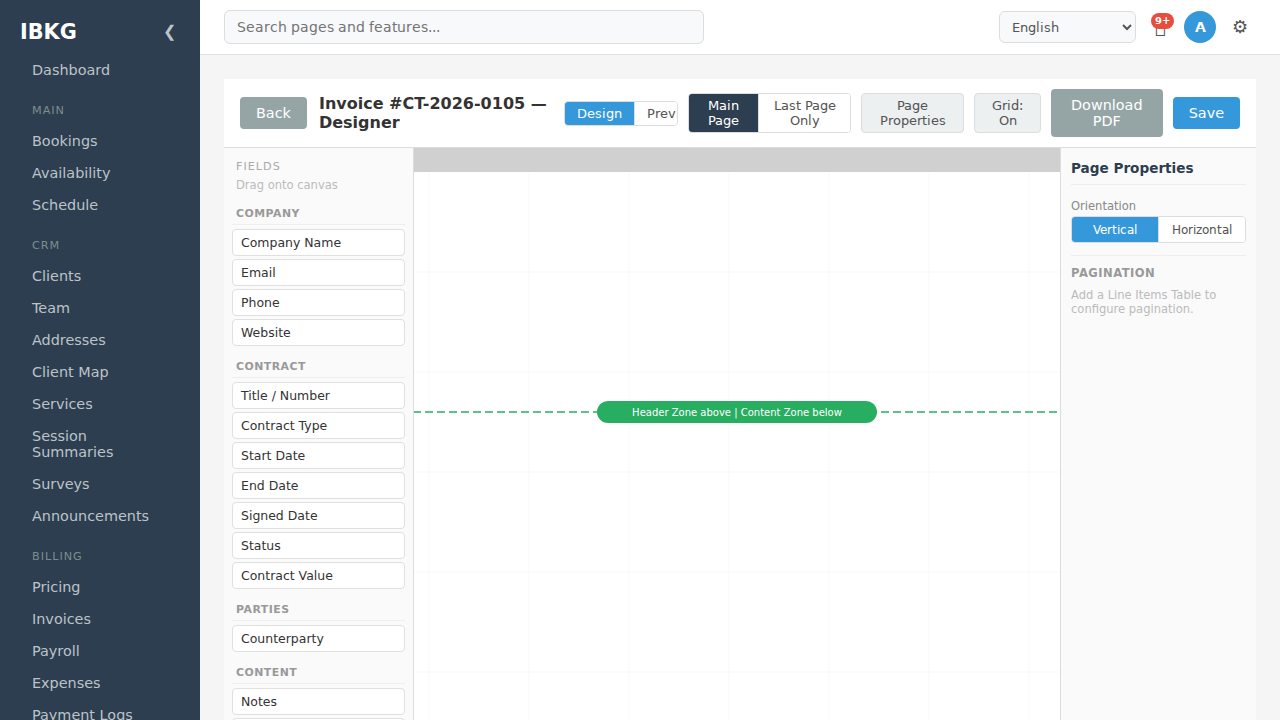
Left panel: draggable field chips grouped as Company / Contract / Parties / Content / Signature / Custom, including the contract-only Signature Block and Witness Block fields. See Contract Designer for the contract field set and signature blocks, and Invoice Designer for the shared mechanics.
Clauses from the Clause Library go into Text / Clause blocks - the designer is drag-drop (Design / Preview), with no raw-HTML mode.
Workflow actions
Buttons appear contextually based on status:
| From status | Action | To status | Notes |
|---|---|---|---|
Draft / Rejected | Submit for Approval | Submitted for Approval | Emails workspace owner |
Submitted for Approval | Approve | Approved | Admin only |
Submitted for Approval | Reject | Rejected | Prompts for reason |
Approved | Send for Signature | Out for Signature | Requires ≥1 party with requires_signature; emails signers |
Active | Terminate | Terminated | Prompts for reason |
Active / Expiring Soon / Approved | Amend | creates new child contract | Prompts for effective date + summary |
| any locked | Clone to new Draft | new contract | Fresh editable copy; original stays locked |
Cloning and deleting
- Clone - duplicates contract, resets status to
Draft, navigates to editor - Delete - soft delete; toggle Show Deleted on the list to recover